

Windows Update Stuck Restarting? Here’s How to Fix It Fast
Introduction
It’s happened to the best of us. You click “Update and Restart,” expecting your computer to be ready in a few minutes. Instead, you stare at a spinning circle for an hour. The screen says “Restarting,” but nothing is actually happening. It’s incredibly frustrating, especially when you have work to do or a game to play.
Software glitches don’t only affect computers—similar system conflicts can also cause mobile issues, such as when a phone charges only when it’s turned off
If your Windows update stuck restarting for hours, you’re likely dealing with a software or system conflict that needs immediate attention.
Don’t worry—you aren’t alone, and your computer isn’t necessarily broken. This guide is here to help you get unstuck. We will walk through exactly why this happens and give you practical, step-by-step solutions to fix the “windows update frozen on restarting” issue and get you back to using your PC quickly.
What Does ‘Windows Update Stuck Restarting’ Mean?
When we talk about a computer being stuck, we mean the process has hanged or frozen during the shutdown or boot-up phase initiated by an update. Usually, Windows needs to restart to apply important security patches or feature improvements. It shuts down processes, installs files, and then boots back up.
However, sometimes this hand-off fumbles. The screen might stay black, or it might display the spinning dots animation indefinitely with the word “Restarting.” This isn’t just a slow computer; it’s a system loop where the computer cannot complete the next instruction.
Addressing this promptly is important because simply pulling the plug can sometimes damage your files or Windows installation. But if it’s truly stuck, you need to intervene safely to break the cycle.
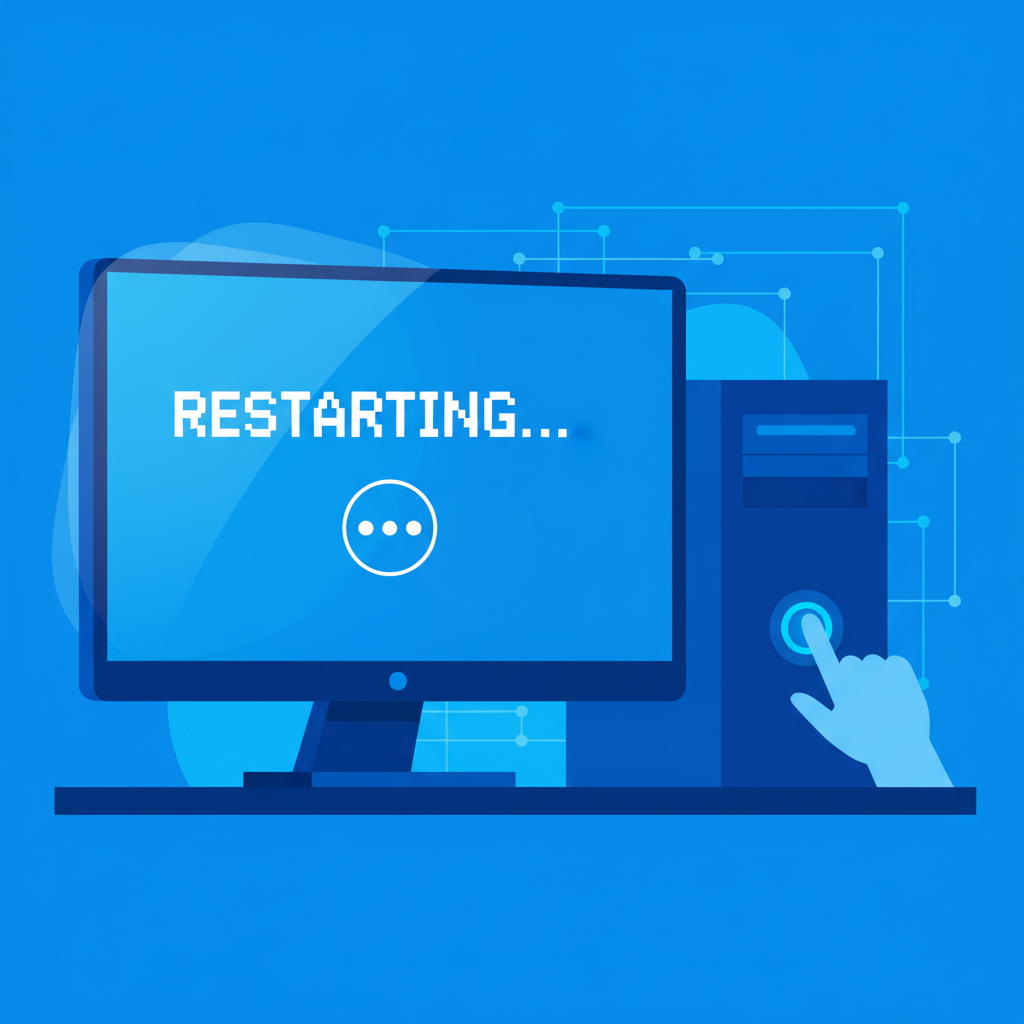
Why Does Windows Update Get Stuck Restarting?
Before we jump into the fixes, it helps to understand what’s going on under the hood. Think of a Windows update like a major renovation on your house. Most of the time, the workers (software) come in, do the job, and leave. But sometimes, they encounter a locked door or run out of materials.
Here are the most common reasons your update might be hanging:
Software Conflicts
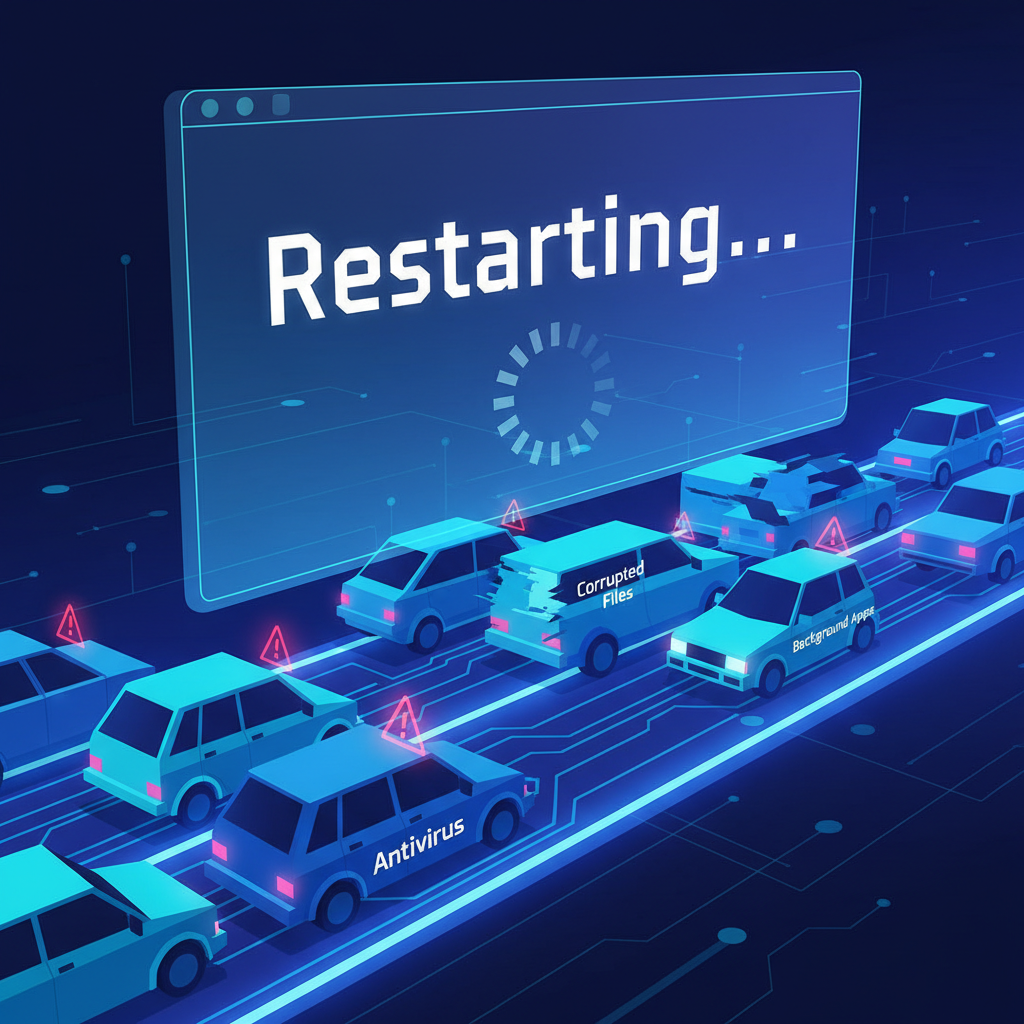
Sometimes, other programs on your computer fight for control during the restart process. This is often caused by third-party antivirus software or background apps that refuse to close. These Software conflicts can act like a traffic jam, preventing the Windows update from moving forward.
Corrupted Update Files
If the renovation materials are broken, the work stops. Similarly, if the update files downloaded from Microsoft are incomplete or corrupted (perhaps due to a spotty internet connection), Windows won’t know how to proceed, leading to a freeze.
Insufficient System Resources
Your computer needs “elbow room” to work. If your hard drive is totally full, or if you have very little RAM available, the system might choke on the update. Insufficient resources are a frequent culprit, making the computer run so slowly that it appears frozen, or actually causing the process to crash.
Outdated Drivers or Firmware
Drivers are like translators between your hardware (like your mouse or screen) and Windows. If these translators are speaking an old language, they might misinterpret the instructions from a new Windows update, causing the whole system to hang during the restart.
How to Fix ‘Windows Update Stuck Restarting’
Now that we know the “why,” let’s tackle the “how.” We will start with the easiest, safest steps and move to more advanced fixes only if necessary.
Hardware and software communication problems are common across devices, just like the issues explained in our guide on iPhone charging but CarPlay not working
These steps work for both Windows 10 and Windows 11 systems experiencing a Windows update stuck restarting issue.
Wait It Out
This requires patience. How long should windows update restarting take? It depends. A major feature update can take 20 minutes to an hour on older machines. Sometimes, Windows is working hard in the background even if the screen looks static.
If the hard drive light on your PC case is blinking, it’s still thinking. Go grab a coffee, take a walk, or watch an episode of a show. If it has been more than two or three hours with absolutely no change, it’s safe to assume it is stuck.
Perform a Hard Reboot
If you have waited hours and nothing is moving, you need to force the issue. This is called a hard reboot. It might feel scary to turn off a computer while it says “Don’t turn off your computer,” but if it’s frozen, you have no choice.
- Press and hold the power button on your PC or laptop case.
- Keep holding it for a full 10 seconds until the screen goes black and the lights/fans turn off.
- Wait about 30 seconds to let the electricity dissipate.
- Press the power button again to turn it back on.
often, this “shock” to the system clears the jam, and Windows will either finish the update or roll it back automatically.
Boot into Safe Mode
If a hard reboot didn’t work and you are stuck in a loop where the computer keeps trying to restart and failing, you need Safe Mode. Safe Mode starts Windows with only the bare minimum files and drivers. It’s like entering your house through the back door when the front door is jammed.
To access Safe Mode when you can’t get into Windows:
- Turn your computer on.
- As soon as you see the Windows logo, hold the power button to force a shutdown (like in step 4.2).
- Repeat this process 2 or 3 times.
- On the next start, Windows should enter the “Automatic Repair” environment.
- Select Advanced options > Troubleshoot > Advanced options > Startup Settings > Restart.
- Once it restarts, press 4 or F4 to start in Safe Mode.
Once in Safe Mode, you can often undo the damage or uninstall the problematic update.
Run Windows Troubleshooter
Microsoft knows updates fail, so they built a tool to fix them. If you can get back into Windows (either normally or in Safe Mode), try this first.
- Click the Start button and go to Settings (the gear icon).
- Select Update & Security > Troubleshoot.
- Click on Additional troubleshooters.
- Select Windows Update and click Run the troubleshooter.
The tool will scan your system and try to apply fixes automatically. For more details on this tool, you can check out Microsoft’s guide on how to troubleshoot problems updating Windows.
Delete Pending Updates
If the update files are corrupted, the troubleshooter might not fix them. You need to delete the old files so Windows is forced to download fresh ones.
- Type “cmd” in the search bar. Right-click Command Prompt and select Run as administrator.
- Type the following commands, pressing Enter after each one to stop the update services:
- net stop wuauserv
- net stop bits
- Open File Explorer and go to C:\Windows\SoftwareDistribution.
- Delete all the files in this folder. (Don’t worry, Windows will recreate them).
- Go back to the Command Prompt and restart the services:
- net start wuauserv
- net start bits
Now, try running Windows Update again.
Update Drivers
If you managed to get back to your desktop, updating your drivers can prevent the loop from happening again.
- Right-click the Start button and select Device Manager.
- Look for any devices with a yellow exclamation mark.
- Right-click the device and select Update driver.
- Choose Search automatically for drivers.
For a more comprehensive look at troubleshooting, Microsoft offers a deep dive into Windows Update issues troubleshooting.
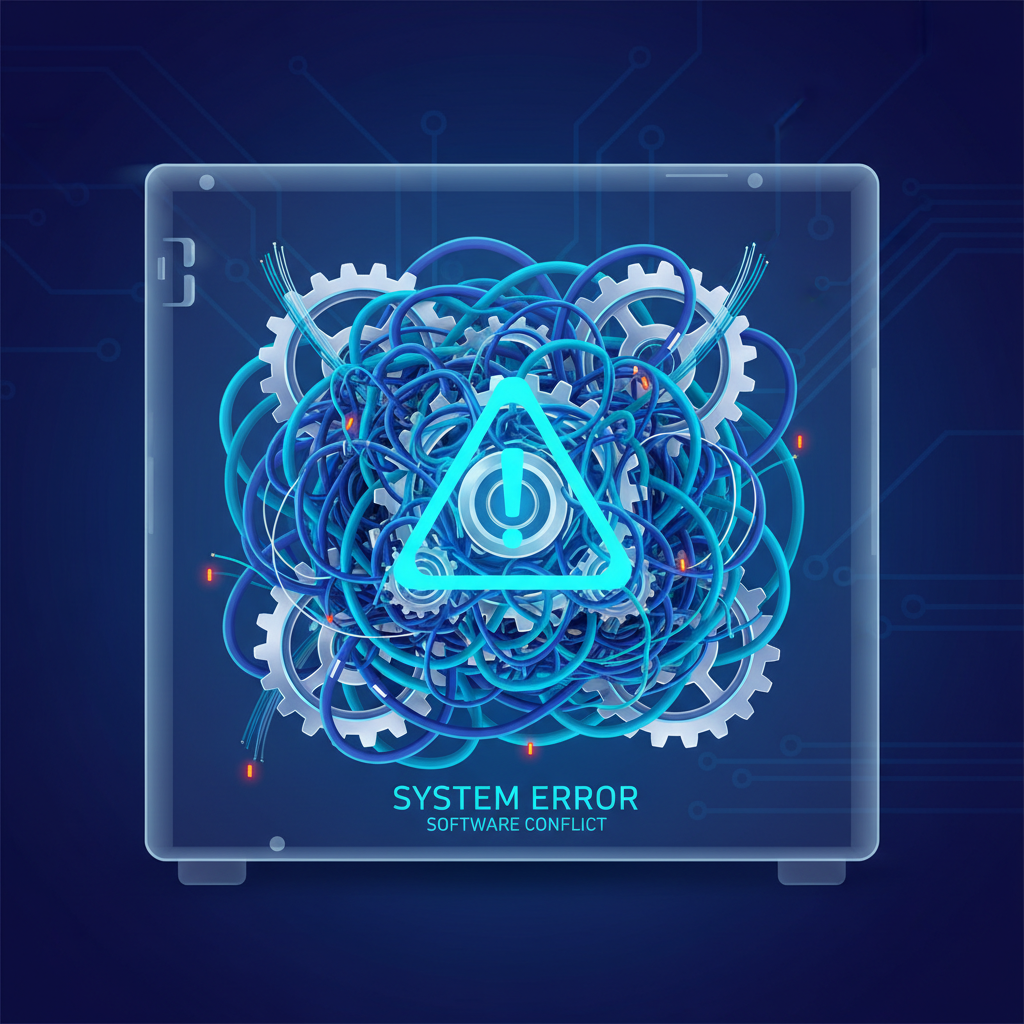
Preventing Windows Update Issues in the Future
Dealing with a windows update frozen on restarting is stressful. The best fix is prevention. Here is how to keep your digital house in order so renovations go smoothly next time.
Keep Drivers and Software Up to Date
Don’t ignore those little pop-ups from your graphics card or mouse software. Keeping everything updated ensures all parts of your computer speak the same language. This reduces the chance of compatibility errors during a Windows update.
Regularly Clean Up Disk Space
Windows updates need space to unpack files—sometimes upwards of 10GB or 20GB temporarily. If your drive is red-lining, updates will fail.
- Use the Disk Cleanup tool built into Windows.
- Delete downloads you don’t need.
- Empty your Recycle Bin regularly.
Schedule Updates During Non-Critical Times
Don’t let updates surprise you. Go to Settings > Update & Security > Change active hours. Tell Windows when you are usually working (e.g., 8 AM to 5 PM) so it won’t try to restart while you are in the middle of a project.
Use Reliable Antivirus Software
Viruses can hijack system processes and block updates to keep themselves safe. Running a good antivirus scan regularly ensures no malware is interfering with your system’s core functions.
When to Seek Professional Help
Sometimes, despite your best efforts, you can’t fix windows update restart loop issues on your own. It is important to know when to throw in the towel to avoid causing further damage.
If you have tried the hard reboot, Safe Mode, and the troubleshooter, and your computer still won’t boot, you might be facing a hardware failure. A failing hard drive, bad RAM stick, or overheating motherboard can all cause freezing during intensive tasks like updates.
Also, if you see blue screens with cryptic error codes repeatedly, or if you hear strange clicking noises coming from your laptop, stop immediately.
Seek a professional technician if:
- You are uncomfortable opening the command prompt or BIOS.
- You have critical data on the computer that isn’t backed up (professionals can often extract data before wiping the drive).
- The computer is physically hot or making noise.
Local repair shops or certified support services (like Geek Squad or your manufacturer’s support) are your best bet here.

Frequently Asked Questions
What should I do if my computer is stuck on the “Restarting” screen for hours?
If it has been more than 2-3 hours, it is likely stuck. You should perform a hard reboot by holding down the power button for 10 seconds until the PC turns off.
Can I turn off my PC during a Windows update?
Generally, you shouldn’t. However, if the update is frozen and making no progress for hours, turning it off is the only way to break the loop. It carries a small risk of file corruption, but it is often necessary.
How do I access Safe Mode if my computer won’t boot?
Interrupt the startup process 3 times in a row by holding the power button as soon as the Windows logo appears. This triggers the Automatic Repair screen, where you can navigate to Startup Settings and choose Safe Mode.
Will I lose my data if I force restart my computer?
Usually, no. Windows is designed to be resilient. If you force a restart, it will typically try to resume the update or roll back to the previous version. However, there is always a slight risk, which is why backups are vital.
How can I check if my drivers are outdated?
Open Device Manager. Look for any devices with yellow warning icons. You can also visit your PC manufacturer’s website (like Dell, HP, or Lenovo) and use their support page to scan for driver updates.
What is the SoftwareDistribution folder, and is it safe to delete?
This folder stores temporary files for Windows updates. It is completely safe to delete the contents of this folder. Windows will simply re-download fresh copies of the files it needs.
Why does my computer keep failing to install updates?
It could be due to low disk space, corrupted system files, or conflicts with other software like antivirus programs. Running the Windows Update Troubleshooter is a good first step to find out why.
How do I know if my hardware is causing the issue?
If updates fail repeatedly even after a fresh Windows installation, or if you experience crashes and freezes during normal use (not just updates), you likely have a hardware issue like a failing drive or faulty RAM.
Can I skip a problematic Windows update?
Yes, you can pause updates in Settings for up to 35 days. Microsoft also offers a “Show or Hide Updates” troubleshooter that allows you to permanently hide specific updates that cause crashes.
How often should I check for updates manually?
Windows checks automatically, but it’s good practice to check manually once a month, perhaps on “Patch Tuesday” (the second Tuesday of every month), to ensure you have the latest security fixes.
If you’re dealing with other tech problems beyond Windows, our FixGuided tutorials also cover mobile issues like phones that only charge when powered off
Conclusion
If your Windows update stuck restarting, following the steps in this guide will help you safely break the loop and restore normal system performance.
Staring at a “Restarting” screen can feel like a tech nightmare, but it is usually a solvable problem. By understanding how to exit windows update restart loop, knowing when to wait, and when to force a reboot, you can take control of your PC again. Remember to keep your system clean, your drivers updated, and your files backed up. Good luck, and may your next restart be a swift one!