
WiFi Connected But No Internet on Laptop? How to Fix It Step by Step
Seeing that full WiFi signal bar with the dreaded “No Internet” message is incredibly frustrating. It stops your work, streaming, and browsing dead in its tracks. Don’t panic—this issue is common and usually fixable. Let’s walk through practical, step-by-step troubleshooting to get your connection flowing again quickly.
Table of Contents
What Does “WiFi Connected but No Internet” Mean?
It sounds contradictory, doesn’t it? Your device displays full signal bars, yet web pages simply won’t load. To understand this glitch, we need to distinguish between “WiFi” and the “Internet.”
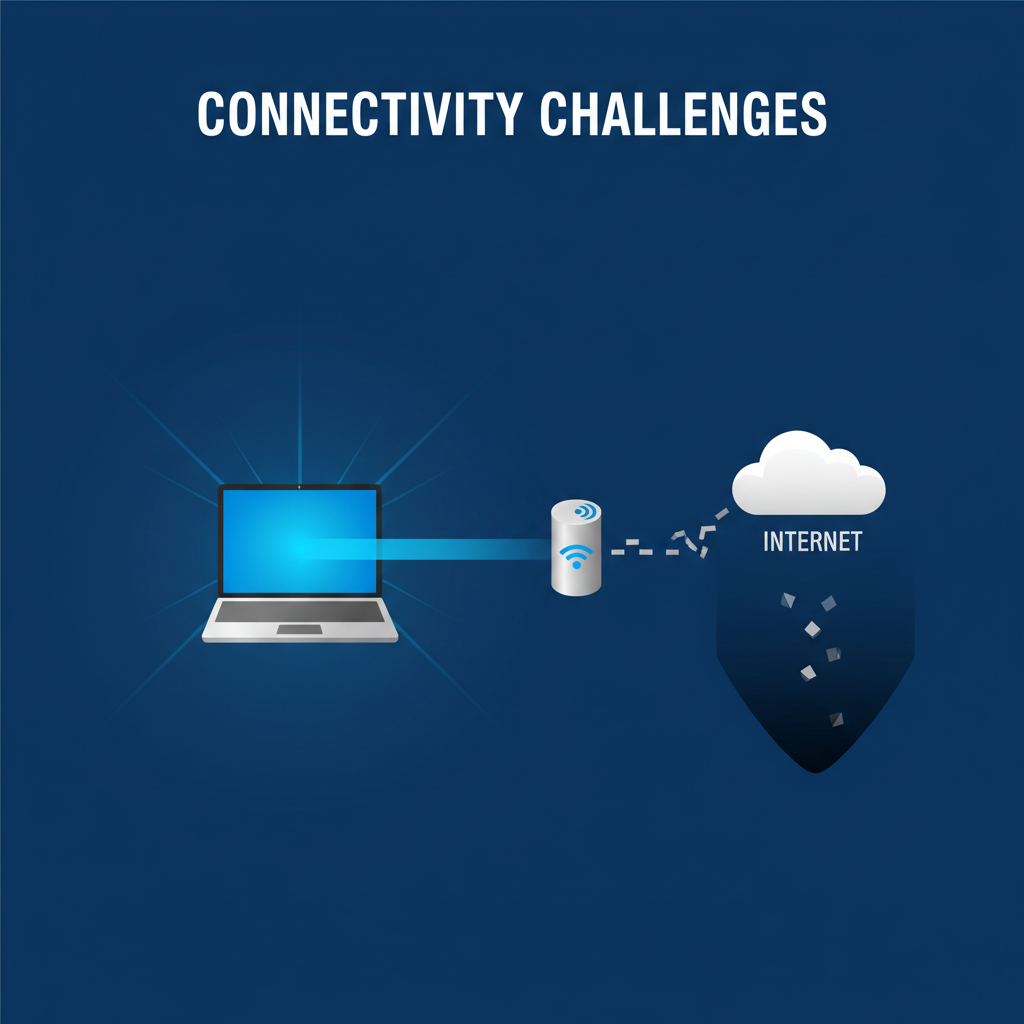
Think of your WiFi connection as a cable connecting your laptop to your router. The Internet is the data flowing through that cable from the outside world. When you see “Connected, No Internet,” it means the link between your device and the router is solid, but the router itself isn’t receiving any data to pass along. Your laptop can “talk” to the router, but the router cannot reach the outside world.
This scenario is incredibly common. It frequently occurs when your Internet Service Provider (ISP) has an outage, when a modem needs a reboot, or when you connect to public networks (like hotels or cafes) but haven’t completed the login page requirements yet.
WiFi Connected But No Internet on Laptop: Common Causes
Identifying the root cause is half the battle. While it feels like bad luck when the internet stops working, the reasons are usually quite logical. Before diving into the fixes, it helps to understand the “why.” Here are the most frequent offenders:
- Router or Modem Issues: This is the most likely suspect. Modems and routers are tiny computers that run 24/7. Over time, their memory can get cluttered, caches can fill up, or they can simply overheat. This causes them to drop the actual data connection to the outside world while still broadcasting a strong local WiFi signal to your device.
- ISP (Internet Service Provider) Outages: Sometimes the problem isn’t inside your house at all. If your provider is experiencing a service disruption due to maintenance, downed lines, or severe weather, your equipment will show a connection, but there’s no data coming down the line.
- Incorrect Network Settings: If your laptop is configured with specific settings—like a static IP address or a custom DNS server—that don’t match the network you are currently using, the handshake between your device and the web will fail.
- Outdated or Corrupted Network Drivers: Drivers are the software “translators” that let your operating system talk to your WiFi hardware. If these become outdated or corrupted, the communication breaks down, and access is cut off.
- Firewall or Antivirus Interference: Security software is essential, but sometimes it gets a little too overprotective. An aggressive firewall might mistake legitimate network traffic for a threat and block your access completely.
- IP Address Conflicts: Every device on your network needs a unique address (IP). If two devices accidentally try to claim the same one, it causes a digital traffic jam where neither can connect properly.
WiFi Connected But No Internet on Laptop (Windows 10 / Windows 11)
If you’re using a Windows 10 or Windows 11 laptop, this issue is especially common after system updates, driver changes, or network setting conflicts. Windows may show “Connected, No Internet” even though your WiFi signal is strong.
If you’re using Windows, Microsoft provides an official guide to fix Wi-Fi connection issues in Windows that covers common causes like driver errors, IP problems, and network misconfiguration.
Start by checking whether other devices on the same network can access the internet. If they can, the problem is likely limited to your Windows laptop. In many cases, the issue is caused by corrupted network drivers, incorrect DNS configuration, or Windows failing to renew a valid IP address from the router.
Windows 10 and Windows 11 both include built-in tools that can automatically detect and repair these problems. Running the Windows Network Troubleshooter, resetting IP and DNS settings, and updating or reinstalling network drivers are usually enough to restore internet access on a Windows laptop.

How to Fix WiFi Connected But No Internet on Laptop (All Methods)
Now that we know the potential culprits, let’s roll up our sleeves and get your internet working again. Follow these steps in order—we start with the easiest fixes and move toward the more technical ones.
1. Check Other Devices
Before you start changing settings on your laptop, we need to know where the problem lives. Grab your smartphone or a tablet and connect it to the same WiFi network.
Does the internet work on your phone?
- Yes: The problem is isolated to your laptop. You can focus your troubleshooting there.
- No: The issue is likely with your router or your Internet Service Provider (ISP). Skip ahead to restarting your router.
2. Restart Your Router and Laptop
It’s the oldest advice in the book for a reason: it works. A simple restart clears out temporary glitches and refreshes the connection.
First, restart your laptop. If that doesn’t help, move to the router:
- Unplug the power cable from your router (and modem, if they are separate).
- Wait at least 30 seconds. This ensures all residual power drains away.
- Plug everything back in and wait for the lights to stabilize.
- Try connecting again.
3. Check Your Internet Service Provider (ISP)
If restarting didn’t work and no devices can connect, your ISP might be having a bad day. Storms, construction, or system maintenance can knock out service for entire neighborhoods.
Use your phone’s mobile data to visit your ISP’s website or app. most providers have an “Outage Map” or status checker. Alternatively, you can call their support line. If there is a known outage, unfortunately, the only fix is patience.
4. Run Windows Network Troubleshooter
Windows has a built-in repair tool designed specifically for this scenario. It can automatically detect and fix common configuration errors.
- Right-click the WiFi icon in your taskbar (bottom right corner).
- Select Diagnose network problems or Troubleshoot problems.
- Follow the on-screen prompts.
The system will scan for issues. Sometimes, network connectivity problems are side effects of larger system glitches. For instance, if your system is pending an update or hung up on a previous installation, it can disrupt drivers. If you suspect your system is lagging due to updates, you might need a Windows update fix to clear the blockage before the network can function properly.
5. Reset Your IP Address and DNS Settings
Sometimes your computer holds onto outdated “address” information that conflicts with the router. Flushing this out forces your laptop to request a fresh connection.
- Type cmd in your Windows search bar.
- Right-click Command Prompt and select Run as administrator.
- Type the following commands one by one, pressing Enter after each:
- netsh winsock reset
- netsh int ip reset
- ipconfig /release
- ipconfig /renew
- ipconfig /flushdns
- Restart your computer and check the connection.
6. Update or Reinstall Network Drivers
Your network adapter is the hardware that catches the WiFi signal. If its driver (software) is corrupted, it won’t work.
- Right-click the Start button and select Device Manager.
- Expand the Network adapters section.
- Find your WiFi adapter (usually has “Wireless” or “Wi-Fi” in the name).
- Right-click it and select Update driver. Choose “Search automatically for drivers.”
- If that fails, choose Uninstall device. Don’t worry—Windows will automatically reinstall the factory version when you restart your laptop.
7. Disable Firewall or Antivirus Temporarily
Strict security software can sometimes mistake your internet traffic for an attack and block it.
Temporarily turn off your third-party antivirus or Windows Defender firewall. If the internet comes back immediately, you know the software is the culprit. You can then turn it back on and check the software’s settings to “allow” your network traffic. Note: Only do this for a moment to test; do not leave your computer unprotected for long.

Advanced Fixes for Persistent Issues
If the standard troubleshooting steps haven’t restored your connection, you are likely dealing with a deeper configuration error or a hardware glitch. Don’t worry—these advanced methods are designed to tackle those stubborn issues.
Manually Configure Network Settings
Sometimes, the automatic assignment of IP addresses (DHCP) fails. You can bypass this by manually telling your computer exactly which address to use.
- Open Control Panel > Network and Sharing Center.
- Click on your WiFi connection name, then select Properties.
- Double-click Internet Protocol Version 4 (TCP/IPv4).
- Select “Use the following DNS server addresses” and enter Google’s public DNS for a reliable alternative:
- Preferred DNS server: 8.8.8.8
- Alternate DNS server: 8.8.4.4
- Click OK and test your connection. This often bypasses ISP-related DNS glitches.
Google explains how to use Google Public DNS to fix internet connection issues, which can help when ISP DNS servers are slow or unreliable.
Reset Network Settings to Default
If you have tweaked settings in the past or if a software update corrupted your configuration, a full reset can wipe the slate clean. This forgets all known WiFi networks and VPN configurations, returning your network adapters to their factory state.
On Windows 10 or 11, go to Settings > Network & Internet > Advanced network settings > Network reset. Click Reset now and confirm. Your computer will restart, and you will need to re-enter your WiFi password, but this frequently clears out deep-seated errors.
Check for Malware or Viruses
Malicious software can hijack your internet connection to send spam or steal data, effectively blocking your legitimate access. If your connection drops randomly or feels throttled, run a deep scan with your antivirus software.
Malware doesn’t just affect browsing; it creates system-wide instability. For example, users often report strange behaviors like charging issues on connected devices or severe battery drain alongside connectivity drops. Ensuring your system is clean is a critical step in restoring normal function.
Replace or Upgrade Hardware
If you have tried every software fix and still see “No Internet,” the problem might be physical. WiFi cards in laptops can fail after years of use, and router antennas can degrade.
- Test with an external adapter: Buy a cheap USB WiFi adapter. If plugging it in restores your internet, your laptop’s internal card is likely faulty.
- Router check: If your router is over five years old, it may simply be unable to process modern traffic demands efficiently. Upgrading to a newer model can often solve persistent connectivity headaches instantly.
Preventing Future Connectivity Issues
Fixing the problem is a relief, but preventing it is even better. You can avoid those stressful “No Internet” moments by maintaining good digital hygiene.
First, keep everything updated. Set your laptop to automatically install Windows updates and network drivers. Don’t forget your router; check its admin panel occasionally for firmware upgrades that improve stability. Also, ensure you are using a reliable antivirus program to block traffic-hijacking malware.
Second, manage your network load. If you have too many devices fighting for bandwidth, your router might drop connections. Disconnect devices you aren’t using to keep the signal strong for your laptop.
Finally, perform periodic maintenance. Reboot your router once a month to clear its cache. Regular check-ups help you spot small glitches before they become big outages. This logic applies to all your tech; whether you are fixing a laptop connection or figuring out why is CarPlay not working, keeping your software and connections clean is the best defense against technical failures.
Frequently Asked Questions
Why does my laptop say “connected, no internet”?
This means your device successfully established a link to your local router, but the router itself isn’t receiving any data from the outside world to pass along to you.
How do I know if the problem is with my ISP?
Check your Internet Service Provider’s website for an outage map using your phone’s mobile data, or call their support line. If they confirm an outage, you just have to wait.
Can a VPN cause this issue?
Yes. If your VPN server goes down or glitches, it can cut off your access completely. Try disconnecting the VPN to see if the internet returns.
How do I reset my network settings on Windows?
Go to Settings > Network & Internet > Advanced network settings > Network reset. This reinstalls network adapters and reverts settings to factory defaults.
What should I do if the problem persists after troubleshooting?
If you have tried every step and ruled out an ISP outage, contact a professional technician. Your laptop’s internal WiFi card may be damaged.
How do I update my network drivers?
Open Device Manager, expand “Network adapters,” right-click your WiFi adapter, and select Update driver.
Can antivirus software block my internet connection?
Yes, aggressive firewalls sometimes mistake normal browsing for a threat. Temporarily disabling the software confirms if this is the cause.
What’s the difference between 2.4 GHz and 5 GHz WiFi?
2.4 GHz offers longer range and penetrates walls better but is slower. 5 GHz provides faster speeds but has a shorter range.
How do I check if my router is faulty?
If every device in your home (phones, tablets, laptops) fails to connect, the issue is likely the router or the modem.
Is it safe to disable my firewall temporarily?
Yes, but only for a few minutes to test your connection. Never leave your computer unprotected for long periods.
Conclusion: Fixing WiFi Connected But No Internet on Laptop
Dealing with a WiFi connected but no internet on laptop problem can be frustrating, but in most cases, it’s completely fixable without professional help. The issue usually comes from router glitches, ISP outages, incorrect network settings, or outdated drivers rather than a serious hardware failure.
By following a step-by-step approach—starting with simple checks, restarting your router, running Windows troubleshooting tools, resetting IP and DNS settings, and updating network drivers—you can quickly identify what’s blocking your connection. For Windows 10 and Windows 11 users, built-in tools and proper DNS configuration often resolve the issue within minutes.
If the problem keeps coming back, regular maintenance like keeping your system updated, rebooting your router monthly, and using reliable security software can prevent future connectivity issues. And if none of the fixes work, testing with an external WiFi adapter or upgrading aging hardware may be the final solution.
With the right troubleshooting steps, you can get back online quickly and avoid the stress of seeing that “Connected, No Internet” message again.