

Why Does My Internet Speed Fluctuate So Much?
It’s a familiar story. You’re in the middle of streaming your favorite show, on an important video call or attempting to win an online game when suddenly everything just stops. Your video stutters, your call drops and your connection wavers. If you’ve ever wondered, “Why does my internet speed fluctuate so much?”, you’re not alone. This guide can help you discover what’s causing the errors and troubleshoot them accordingly.
Table of Contents
What Is Internet Speed Fluctuation and Why Does It Happen?
internet speed fluctuates is when your connection speed varies. One instant, you have a speedy and stable connection; the next, it’s crawling along, waiting to buffer. Your internet speed goes up and down, so it’s not really ideal for tasks that require a steady stream of data.
Imagine your internet connection is a highway. You can drive at the speed limit when traffic is light. But at rush hour, the identical highway clogs up and your speed is very low.
On the other hand, some elements can clog your digital would around and result in an interrupted internet connection. This inconsistent behavior can wreak havoc on everything from easy browsing to highly intensive tasks, such as streaming 4K video or online competitive gaming. Knowing the causes of these digital traffic jams is also the first step to a less glitchy online experience.

Common Causes of Internet Speed Fluctuations
Your internet connection is a complex system with many moving parts. When your internet speed fluctuates, it’s usually due to a bottleneck somewhere along the line. Let’s break down the most common culprits so you can pinpoint what might be slowing you down.
Network Congestion During Peak Hours
Internet rush hour There is also a version of the rush hour on the internet, similar to the motorway analogy. This is usually in the evenings between 7PM and 11PM, when many people return from school or work. Because at these times, all your neighbors are probably online too — streaming movies, gaming, scrolling through social media and video chatting. This all happens simultaneously which puts a heavy load on your Internet Service Provider’s (ISP) network. The shared infrastructure is capable of processing only so much data at a time. With more demand than available bandwidth, everyone’s connection slows. It’s not just something that is plaguing your particular setup; it’s a widespread neighborhood problem. The result is a sluggish experience for your connection until the digital traffic takes some time to thin out.
Outdated Modem or Router Hardware
Your modem and router are the gatekeepers of your home’s internet. The modem translates the signal from your ISP into a usable internet connection, while the router distributes that connection to all your devices. If this equipment is old, it might not be able to keep up with the faster speeds you’re paying for.
Technology evolves quickly, and a modem or router from five years ago might not support the latest standards needed for optimal performance. An outdated router can act like a narrow, one-lane bridge on a multi-lane highway, creating a permanent bottleneck that limits your speed, no matter how fast your internet plan is. The difference between aModem vs Router is crucial; both must be up-to-date to handle modern internet speeds effectively.
Weak Wi-Fi Signal Strength
Your Wi-Fi signal does not travel freely throughout your home. Solid walls (especially concrete or brick), metal appliances (such as refrigerators) and even large furniture can degrade or block the signal. The more distant your device is from the router, the weaker the signal. Interference from other electronics, like microwave ovens, cordless phones and even your neighbor’s Wi-Fi network, can also reduce the effectiveness of your connection.
That’s why you can have a fast connection in the living room near the router, and be dropping a better than Usain Bolt 2.5 GHz WiFi speed all the way up to an unstable internet connection in your upstairs bedroom. The signal is just not strong enough to sustain good performance across your whole house.
Background Apps Consuming Bandwidth
Many of the devices connected to your network are secretly sipping away at your bandwidth without you even realizing it. Automatic software updates, cloud services syncing files (like Google Drive or Dropbox), and streaming apps pre-loading content can all consume a significant chunk of your internet resources.
If multiple devices are performing these background tasks simultaneously, it can easily saturate your connection. For example, if your computer is downloading largebackground apps or system updates while someone else is trying to stream a movie, both activities will suffer from reduced speed. This is a common reason why internet speed goes up and down seemingly at random.
Issues with Your Internet Service Provider (ISP)
And sometimes the problem isn’t even in your home. It might be your ISP. They could be having technical issues, running network maintenance or there might be an outage in your neck of the woods. An overloaded network from their end, or bad equipment that feeds your neighborhood, can slow things down generally.
ISPs also occasionally “throttle” your speed, or deliberately slow it down if you go over a certain data cap within your plan. “Once you’ve tried all the fixes at home and are still noticing an unstable connection, the source of the fluctuation may not be on your end and might need to be rectified with a call to your provider,” he says. For more insights on this topic, you can check this detailed post fromInternetServices.com.

Wi-Fi vs Ethernet: Why Internet Speed Fluctuates More on Wi-Fi
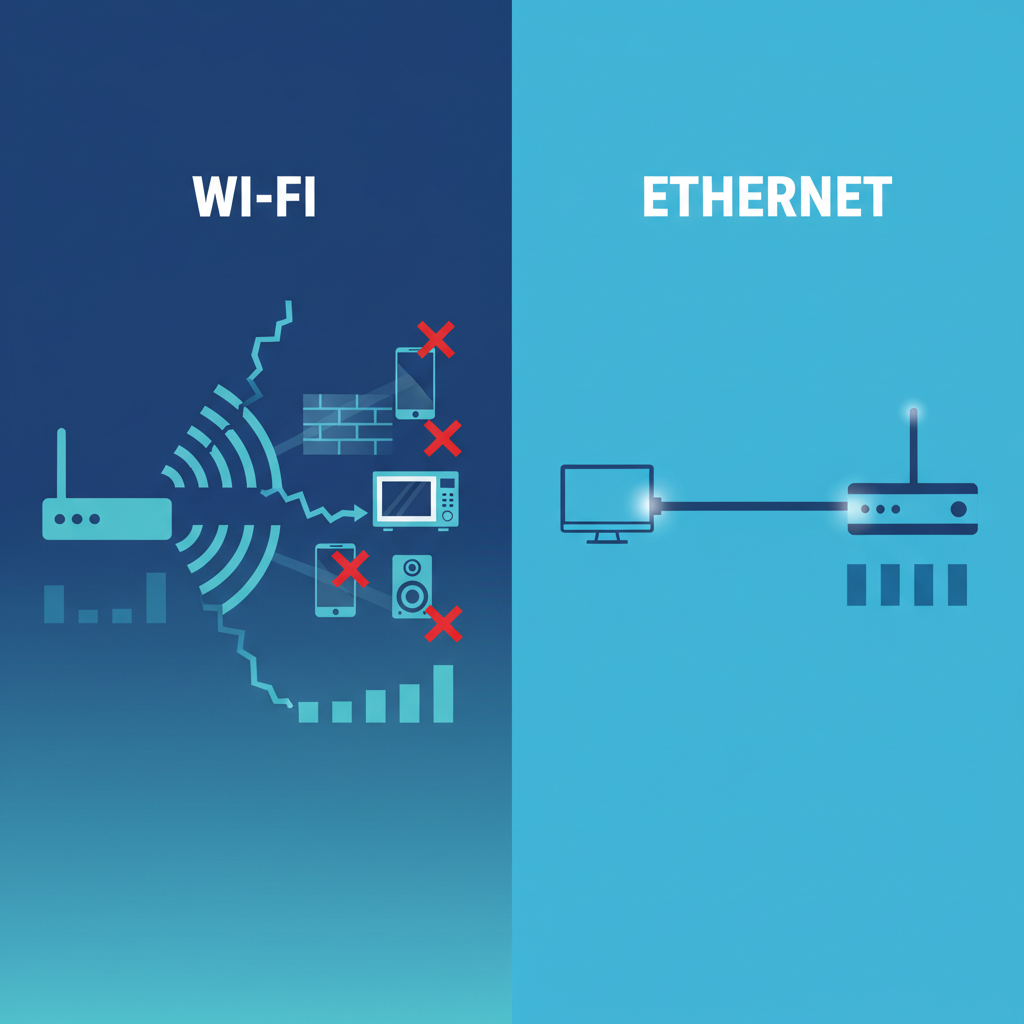
If your internet speed goes up and down and fluctuates from day to day, the device that connects you does too. One of the most common reasons people get cable internet is due to instability, and one of the top causes of never-ending buffering videos (or lossy video chats with friends or colleagues) comes down to Wi-Fi versus Ethernet connections.
Why Wi-Fi Is More Prone to Speed Fluctuations
Wi-Fi transmits data over radio signals through the air, which is convenient — and also less predictable. Many things can interfere with these signals so that your internet speed varies:
- Distance from the router: The farther you are from the router, the weaker the signal becomes. Weak signals result in slower and inconsistent speeds.
- Physical obstructions: Walls, floors, metal objects, and furniture can block or weaken Wi-Fi signals, especially in larger homes.
- Signal interference: Other Wi-Fi networks (especially in apartments), microwaves, cordless phones, and Bluetooth devices can disrupt your connection.
- Network congestion: Multiple devices using Wi-Fi at the same time can overload the wireless signal, causing sudden speed drops.
Because Wi-Fi is shared and sensitive to interference, it’s common for Wi-Fi speed to fluctuate even when your internet plan is fast.
Why Ethernet Provides More Stable Internet Speed
Ethernet connections use a physical cable to connect your device directly to the router. This removes most of the variables that cause Wi-Fi issues.
Benefits of Ethernet include:
- Consistent speeds with minimal fluctuation
- Lower latency (ping) for gaming and video calls
- No interference from walls or nearby electronics
- Better performance during peak usage times
If your internet speed is stable on Ethernet but unstable on Wi-Fi, the issue is almost certainly related to your wireless setup—not your ISP.
Which Should You Use?
- Use Ethernet for devices that need reliable speed (PCs, gaming consoles, smart TVs).
- Use Wi-Fi for mobility, but optimize it with better router placement or upgraded equipment.
Understanding this difference helps quickly diagnose why your internet speed fluctuates and guides you toward the right fix.
How to Test Your Internet Speed
You can’t solve a problem without first diagnosing it. Certainement, vous devez tester votre vitesse sur internet pour apprendre à quelle performance exacte vous avez droit, sans égard à ce que cela vous coûte. It provides you with a baseline to measure your results and understand whether the changes you are making are having a positive impact. This is how to do it right.
Using Online Speed Test Tools
The easiest way to check your internet speed is with a free online tool. Websites like Speedtest.net and Fast.com (run by Netflix) are popular and reliable options. To get the most accurate reading, follow these simple steps:
- Connect Directly: If possible, plug your computer directly into your router using an Ethernet cable. This eliminates Wi-Fi as a variable and measures the true speed coming into your home.
- Close Other Programs: Shut down any applications, tabs, or devices that are using the internet. This includes streaming services, online games, and large downloads. You want the speed test to be the only thing using your bandwidth.
- Run the Test: Go to the speed test website and click “Go” or “Start.” The test will take about a minute to complete.
Interpreting Download vs. Upload Speeds
The speed test will give you three key metrics:
- Download Speed: This is how fast your connection can pull data from the internet to your device. It’s the most important metric for activities like streaming video, browsing websites, and downloading files. It’s measured in megabits per second (Mbps).
- Upload Speed: This is how fast you can send data from your device to the internet. It’s crucial for video calls, uploading large files, and online gaming. For most residential plans, upload speed is significantly lower than download speed.
- Ping (or Latency): Measured in milliseconds (ms), this is the reaction time of your connection. It’s how quickly you get a response after you’ve sent out a request. A low ping is essential for responsive online gaming and smooth video conferencing.
Testing on Multiple Devices for Accuracy
Don’t trust a single test from one device. Use speed tests on a range of devices (laptops, phones, tablets), in different parts of your home. This will help you determine whether the issue is specific to a device or connected to the Wi-Fi signal strength in certain parts of your home.
If you’re seeing fast Ethernet speeds and your phone’s WiFi performance is bouncing up down, then the problem likely isn’t your internet service provider. By testing methodically, you accumulate the necessary evidence to begin effective troubleshooting.

How to Fix Internet Speed That Fluctuates
Now that you know your internet speed fluctuates, we can tackle it. Thankfully, much of that can often be credited to simple, direct steps that don’t necessitate you being a tech genius. Here’s a look at the most effective ways to settle your connection and increase download speeds.
Restarting Your Modem and Router
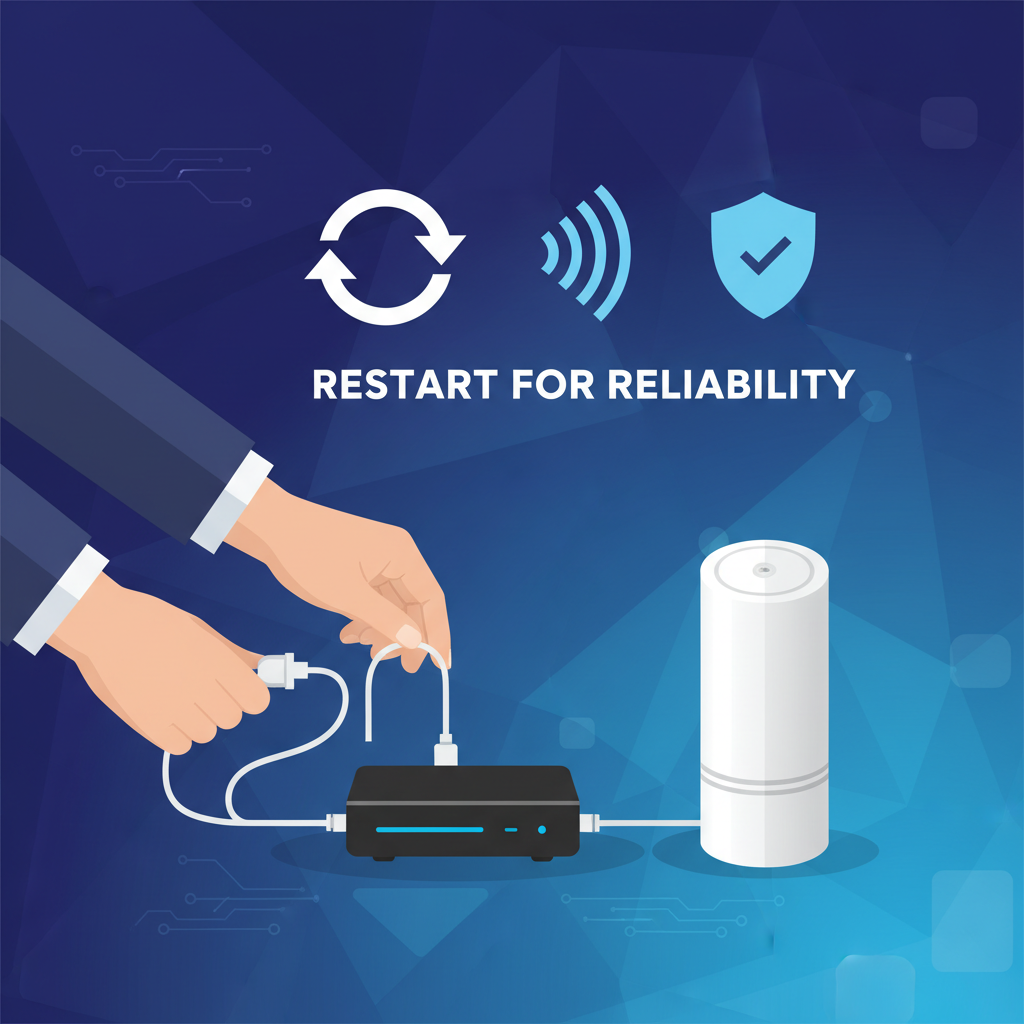
If it ain’t broke, don’t fix it This is an old trick — the oldest in the IT book, one might say — but that’s because it frequently does the job. Restarting your modem and router, or “power cycling,” can clear out temporary glitches, which also currently reside in the memory of both devices, and create a new connection to your ISP.
How to do it properly:
- Unplug the power cords from both your modem and your router. Don’t just turn them off with a power button.
- Wait for at least 60 seconds. This gives the devices enough time to fully power down and reset their internal components.
- Plug the modem back in first. Wait for all its indicator lights to become solid green or blue (this can take a few minutes). The light labeled “Online,” “Internet,” or with a globe icon is the most important one.
- Once the modem is fully online, plug the router back in. Wait for its lights to stabilize.
- Test your connection again. This simple reset can often resolve an unstable internet connection immediately.
Moving Your Router to a Better Location
The physical location of your router has a huge impact on your Wi-Fi performance. If it’s tucked away in a cabinet, stuck in a corner of the basement, or surrounded by other electronics, its signal is likely being smothered.
Tips for optimal placement:
- Central and High: Place your router in a central location in your home, as high up as possible (e.g., on a high shelf). Wi-Fi signals travel downwards and outwards, so this helps ensure better coverage.
- Out in the Open: Avoid placing it in enclosed spaces like closets or entertainment centers. It needs open air to broadcast its signal effectively.
- Away from Obstructions: Keep it away from thick walls, large metal objects (like filing cabinets or refrigerators), and aquariums.
- Minimize Interference: Move it away from other electronics that can cause interference, such as microwaves, cordless phones, and Bluetooth speakers.
Updating Firmware and Drivers
Firmware is the software that runs on your router and modem. Manufacturers regularly release updates to improve performance, patch security holes, and fix bugs that could be causing your internet speed to go up and down. Similarly, the network adapter on your computer has drivers that may need updating.
- Router/Modem Firmware: Most modern routers have an auto-update feature, but it’s worth checking manually. You can do this by logging into your router’s admin panel through a web browser (the address is usually on a sticker on the router, often 192.168.1.1). Look for a “Firmware Update” or “Router Update” section.
- Network Drivers: On your computer, go to the Device Manager (on Windows) or System Information (on Mac) to find your network adapter model. Visit the manufacturer’s website to download and install the latest drivers.
Disconnecting Unused Devices
Every device connected to your Wi-Fi uses a small amount of bandwidth, even when idle. If you have dozens of devices—phones, tablets, smart TVs, game consoles, smart home gadgets—they can collectively clog your network. Take a moment to disconnect any devices that aren’t currently in use. This frees up bandwidth and reduces potential interference, which can lead to a more stable connection for the devices you are using. This is also a good opportunity for some general device troubleshooting to ensure none are misbehaving and hogging resources.
Using an Ethernet Cable for Stability
Wi-Fi is also prone to dropouts, and generally a wired connection is going to be faster and more reliable. An Ethernet cable connects your device right to the router, removing every variable that can be a culprit in slow Wi-Fi speeds: Your signal is no longer subject to interference by other signals, nor is it weakened as it moves through walls and floors.
For any stationary devices that need the fastest and most reliable connection, like a desktop or gaming console, an Ethernet cable is your best option. It ensures that you’re receiving the fastest speeds available to you on your plan, without any wireless signal interference. In the event that you’re having serious connectivity problems, checking our Wi-Fi speed troubleshooting guide can also provide more targeted solutions.
When to Upgrade Your Equipment
In some cases not even troubleshooting will cover it: Your hardware is just trying to tell you it’s reaching the end of its life. Technology changes quickly, and the devices that once represented state-of-the-art a couple of years ago may now be the crutches restricting your internet performance. Understanding when to upgrade is the answer to make sure you’re getting the speed you’ve paid for.
Signs Your Router Is Obsolete
How do you know if your router has passed its prime? Look for these telltale signs:
- It only supports older Wi-Fi standards: If your router is labeled with standards like 802.11g or 802.11n, it’s definitely time for an upgrade. Modern devices use Wi-Fi 5 (802.11ac) or Wi-Fi 6 (802.11ax), which offer significantly faster speeds and better performance in crowded networks.
- Constant buffering and dropped connections: If you’ve tried all the troubleshooting steps and your connection is still unstable, the router itself may be failing.
- Slow speeds even over Ethernet: If you plug your computer directly into the router and the speeds are still much lower than your internet plan, the router is likely the culprit.
- It’s more than 5 years old: As a general rule, consider replacing your router every 3-5 years to keep up with new technologies and security standards. A newer model will have a much better router speed impact.
Understanding Modem DOCSIS Standards
For cable internet users, the modem’s DOCSIS (Data Over Cable Service Interface Specification) standard is critical. This technology determines the maximum speed your modem can handle.
- DOCSIS 3.0: This is the minimum standard you should have today. It can support speeds up to 1 Gbps, but its performance can degrade on more crowded networks.
- DOCSIS 3.1: This is the current standard. It supports speeds up to 10 Gbps and is much more efficient at managing network traffic, which helps reduce slowdowns during peak hours. If your internet plan is 300 Mbps or higher, a DOCSIS 3.1 modem is highly recommended to ensure you’re getting the full speed you’re paying for and to future-proof your setup.
Benefits of Mesh Wi-Fi Systems
For larger homes or spaces with lots of walls and dead zones, a single router might not be enough to provide consistent coverage. This is where a mesh Wi-Fi system shines.
A mesh system uses multiple “nodes” or “points” placed around your house to create a single, seamless Wi-Fi network. Instead of one signal trying to reach everywhere, your devices automatically connect to the nearest node, ensuring you always have a strong, stable connection. This is an excellent solution if your WiFi speed is fluctuating as you move from room to room.
When to Contact Your ISP
You’ve power cycled your equipment, tinkered with where your router sits, and perhaps even tried swapping out some of your old gear for newer devices, but there are still wild fluctuations in your internet speeds. At this point, the issue may be beyond your home’s reach and control. You need to get your Internet Service Provider (ISP) on board.
Persistent Outages or Extreme Slowness
If you’re losing your internet connection completely a few times a day, experiencing slow speeds even when directly connected to an Ethernet cable or notice that you’re consistently getting far slower service than the maximum advertised speed on your plan, these are indicators of a bigger problem. Make sure to have your speed test results handy, though, as you’ll need them before you make the call. The more specific evidence you can give your ISP — “I’m paying for 400 Mbps and I’m only getting 50 Mbps at different times of the day” — the better they are able to diagnose what’s actually going on with your connection.
Checking for Local Service Outages
Before you spend 10 minutes on the phone, take a second to check for a known outage in your region. Look for a way to check your ISP’s service status on its website, or even better, through its app. You can also check out third-party websites like Downdetector to find out if other users in your area are experiencing similar problems. Your only recourse is to wait for the provider to resolve an issue if there’s a large-scale outage.
Negotiating a Better Data Plan
It’s also possible that your current internet plan simply isn’t robust enough for your household’s needs. If your family has grown, or you’ve added more smart devices and started streaming more 4K content, you may have outgrown your plan’s capacity. When you call your ISP, ask them to review your data usage. They might recommend upgrading to a higher-tier plan with more bandwidth. This is also a good opportunity to see if they have any promotional offers available or if a competitor provides better service in your area. You can find more user experiences and tips on dealing with ISPs on forums and resources like this BroadbandSearch blog post.
Final Thoughts: Why Does My Internet Speed Fluctuate So Much?
If you’ve been asking yourself, “Why does my internet speed fluctuate so much?”, the answer usually comes down to a combination of network congestion, Wi-Fi interference, outdated hardware, and ISP limitations.
Internet speed is not just about the plan you pay for—it’s influenced by:
- How many devices are connected
- Whether you’re using Wi-Fi or Ethernet
- The quality and age of your router and modem
- Peak usage times in your area
Much of the time, a spotty internet connection can be resolved without having to call your coup-wiring service provider. There are a number of simple things such as restarting your equipment, your home router placement and reducing background usage or switching to wired that can give you significant gains in stability.
But if the troubleshooting does not make any difference, you may need to have your hardware upgraded or get in touch with your ISP whether the lines are being troubled and if there is any limitation of plan.
With an understanding of the risks and some tricks to get around instability, you can transform a dicey internet connection into one that’s fast and reliable — getting you to smooth streaming, steady gaming and clear video calls.
Frequently Asked Questions (FAQ)
1. Why is my internet slow at night?
This is typically due to network congestion. Evenings are “peak hours” for internet usage, as more people in your neighborhood are online streaming, gaming, and browsing. This high demand can overload your ISP’s local infrastructure, causing speeds to drop for everyone.
2. Does weather affect internet speed?
For cable and fiber optic internet, weather has almost no impact. However, for satellite and some types of wireless internet, severe weather like heavy rain, snow, or high winds can physically interfere with the signal, leading to an unstable internet connection.
3. Can a virus slow down my internet?
Yes, absolutely. Malware or a virus on your computer can run in the background, consuming system resources and bandwidth by communicating with a remote server or spreading to other devices. Keeping your antivirus software up-to-date is crucial for both security and performance.
4. What is a good internet speed for gaming?
For online gaming, a low ping (latency) is more important than raw speed. However, a good baseline is a download speed of at least 25 Mbps and an upload speed of 5 Mbps. This ensures you have enough bandwidth to play without lag while also accommodating other devices on your network.
5. Do Wi-Fi extenders actually work?
Wi-Fi extenders can work, but they have a significant drawback. They rebroadcast your existing Wi-Fi signal, but in doing so, they typically cut the available bandwidth in half. A mesh Wi-Fi system is a much more effective solution for eliminating dead zones without sacrificing speed.
6. Why is my upload speed so slow?
Most residential internet plans are asymmetrical, meaning they prioritize download speed over upload speed. This is because typical internet usage (streaming, browsing) involves downloading far more data than uploading. If you frequently upload large files or do a lot of video conferencing, you may need to look for a plan with higher upload speeds.
7. How often should I reboot my router?
A good rule of thumb is to reboot your router and modem about once a month. This simple maintenance can clear out minor software glitches and keep your network running smoothly, preventing the need for a restart only when problems arise.