
What Internet Speed Do I Need to Work From Home?
Introduction
Your video call freeze just as you’re delivering an essential point? A spinning loading wheel is few things in this world more effective at killing productivity. This guide outlines exactly what internet speed do I need to work from home effectively? You’ll get a run down of ideal speed requirements, how to test what you have as well as practical tips for the best setup.
Quick Answer: Internet Speed Needed to Work From Home
Many people will require at least 25 MB to work from home, although optimal speeds for video calls, file uploads and shared households range from 50 to 100 Mbps. If you have several household members working or streaming at the same time, your best experience is likely to come with a 200 Mbps or faster plan.
This guide is informed by real-world testing, ISP benchmarks and recommendations from the FCC and leading video conferencing applications.
Table of Contents
Understanding Internet Speeds
Before we start tossing numbers at each other, it would perhaps help to know what you are paying for. Most gaze at the big number on the ad — typically, the download speed — and figure that’s all that counts. But there’s a bit more subtlety introduced by working remotely. Imagine your internet as a highway. It’s not just about how fast the cars can travel. It’s about how many lanes are open, and whether traffic is moving in both directions.
Download Speed
This is your computer speed, the rate at which it pulls data from the internet. When you open a webpage, stream a training video on YouTube or download an attachment from an email, it’s your download speed working. For most home entertainment — that is, for watching Netflix — this is probably the most important number. But when it comes to work, that’s only part of the story.
Upload Speed
This is how fast your computer transmits data to the internet. This is crucial for working remotely. Whenever you send an email with an attachment, make a file backup to Google Drive or turn your camera on for a Zoom meeting, you’re uploading. If you’ve ever been accused of having “choppy” or “pixelated” video, this is frequently due to the fact that your upload speed can’t keep up.
Latency and Ping
If speed is the maximum at which data can stream, then latency (measured in ping) is the reaction time. Think of yelling hello into a canyon. When the echo comes back, that is your latency. Video calls feel weird with high latency (lag) because that talking-over-each-other becomes the rule, rather than an error.
Data Check: Did you also know that majority of Internet Service Providers (ISPs) heavily advertise download speeds to the public while paying little attention to upload speeds? Either way, you need to think about both when setting up a reliable internet for home office.

What Internet Speed Do I Need to Work From Home? (General Guidelines)
There’s no one “magic number” that fits for everyone. A graphic designer uploading 4K video files has very different needs than a writer who primarily works in Google Docs. And to help you make up your mind, we have categorized the recommendations into distinct tiers based on how you actually use the internet.
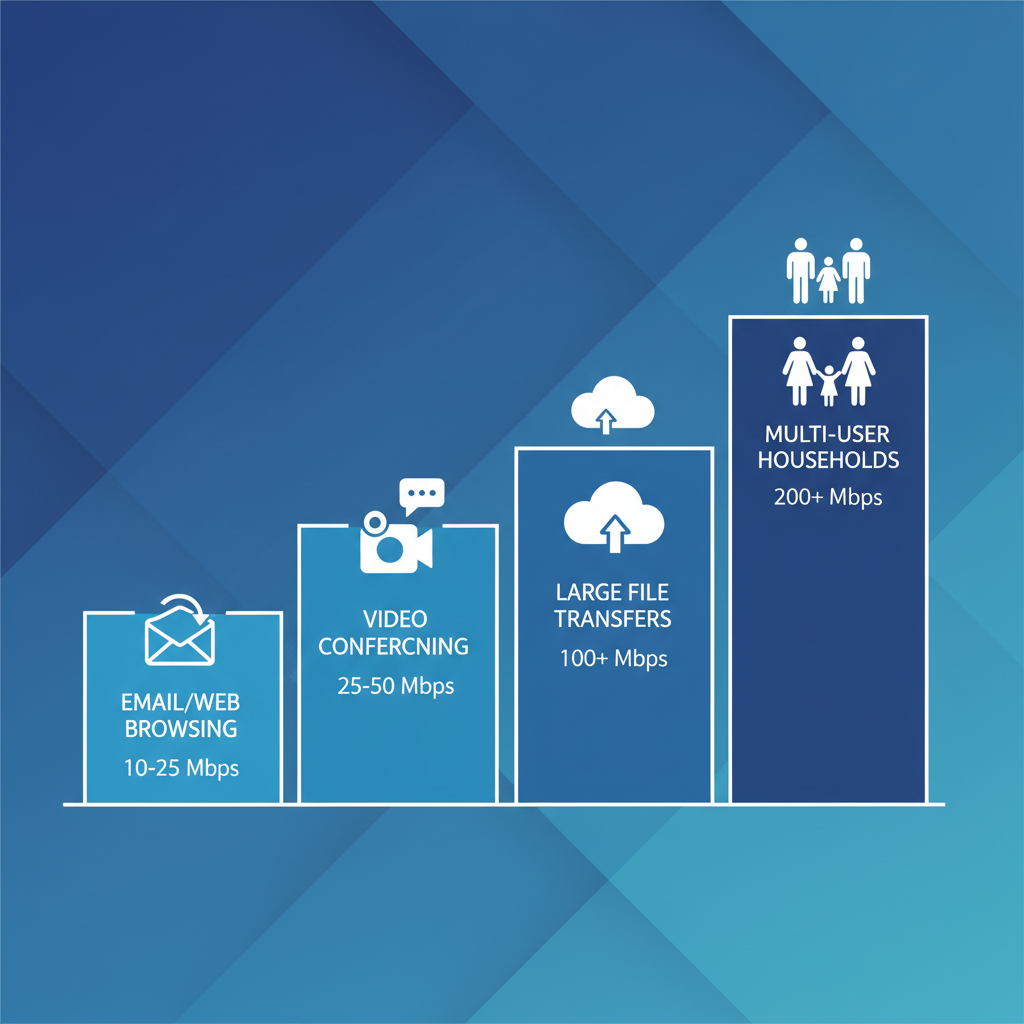
Basic Email & Web Browsing: 10-25 Mbps
If your job is primarily to respond to emails, work with spreadsheets and use web-based CRM software, you won’t require a superfast (or even fast) connection. 10-25 Mbps Speeds are common, and can be more than enough.
- Best For: Writers, administrative assistants, data entry specialists, and roles that rely mostly on text-based tools.
- The Reality: At this speed, you can listen to music while you work, but you might struggle if you try to stream a video in HD while downloading a large update.
Video Conferencing (Zoom/Teams): 25-50 Mbps
This is the sweet spot for the majority of modern remote workers. To maintain a clear picture and crisp audio during meetings, you need a bit more bandwidth. The FCC Broadband Speed Guide suggests that 25 Mbps is the benchmark for “fast” broadband, but for a smooth experience without buffering, aiming for 50 Mbps is safer.
- Best For: Managers, sales representatives, teachers, and anyone who spends a significant portion of their day on video calls.
- The Reality: This tier handles standard definition video calls easily. If you want to use high-definition video or screen share frequently, you will want to be on the upper end of this range (closer to 50 Mbps).
Large File Transfers & Content Creation: 100+ Mbps
Do you require gigabits of data to be transferred frequently? If you’re a creative, even ‘Fast Enough’ isn’t fast enough; whatever the speed of your computer, you need a G-SPEED shuttle with ultra-fast Thunderbolt 3 connectivity to keep up on location, in the studio, and as part of the workflow. Spending 45 minutes waiting for a video draft to upload is not just frustrating; it’s lost billable time.
- Best For: Graphic designers, video editors, software developers pushing code, and architects working with large CAD files.
- The Reality: At 100+ Mbps, you can download large assets in seconds rather than minutes. It also provides a buffer so that if your computer decides to run a background update, it won’t crash your current task.
Multi-User Households: 200+ Mbps
The cliché goes like this: You’re attempting to deliver a quarterly report via Teams, your partner is on the next-room Zoom call and your kids are streaming 4K movies or playing video games online in the basement. Tread lightly, because this is where bandwidth vanishes in the blink of an eye.
- Best For: Families where multiple people work or learn from home simultaneously, or households with heavy smart-home usage.
- The Reality: You need a wide pipe to accommodate everyone. 200 Mbps (or even Gigabit speeds) ensures that someone starting a Netflix movie doesn’t cause your work connection to drop.
Recommended Upload Speed for Working From Home
Although download speed often takes center stage, upload speed is equally — and at times even more — important when you’re working from home. Upload speed affects how well video and audio are sent to others on calls, the speed at which files can be backed up to the cloud, and how long it takes an email with attachments to fly out of your inbox.
Here are the suggested upload say speed requirements according to real work-from-home job firms:
- Minimum upload speed: 5 Mbps
This is the bare minimum for basic tasks like emails, web apps, and occasional video calls. You may experience lag or lower video quality during meetings. - Recommended upload speed: 10 Mbps
Ideal for most remote workers. This allows stable Zoom or Teams calls, screen sharing, and cloud syncing without interruptions. - Heavy upload use: 20 Mbps or higher
Best for content creators, video editors, designers, and anyone regularly uploading large files, videos, or backups.
If your upload speed is too slow, you might appear blurry to colleagues, they may hear choppy audio or even experience dropped calls — even if your download speed is perfectly fine. It’s a common issue for cable and DSL internet plans that are usually more focused on the download process than the upload.
For the best experience, look for fiber internet and its symmetrical speeds (the same upload speed as download speed) or consider going wired with an Ethernet connection to reduce interference from Wi-Fi and cut down on latency.
Internet Speed Requirements by Job Type (Download vs Upload)
| Job Type / Work Activity | Recommended Download Speed | Recommended Upload Speed | Why This Speed Is Needed |
| Email, Web Browsing, Admin Work | 10–25 Mbps | 5 Mbps | Handles emails, cloud documents, and basic web apps without delays |
| Video Meetings (Zoom, Teams, Google Meet) | 25–50 Mbps | 10 Mbps | Ensures clear video, smooth audio, and reliable screen sharing |
| Remote Teaching & Online Training | 50 Mbps | 10–15 Mbps | Supports long HD video sessions and real-time interaction |
| Graphic Design & File Sharing | 50–100 Mbps | 15–20 Mbps | Speeds up uploads/downloads of large image and design files |
| Software Development & Cloud Tools | 100 Mbps | 10–20 Mbps | Improves code syncing, remote servers, and cloud-based workflows |
| Video Editing & Content Creation | 200+ Mbps | 20–50 Mbps | Reduces upload times for large video files and cloud backups |
| Multi-User Work-From-Home Households | 200+ Mbps | 20+ Mbps | Prevents slowdowns when multiple people work or stream simultaneously |
How to Check Your Current Internet Speed
Before you call your ISP to upgrade, you need to know your baseline. Many people pay for “up to” 100 Mbps but only receive a fraction of that in their home office. Diagnosing this is the first step in troubleshooting. If you suspect Wi-Fi issues, running a test will confirm if the signal is reaching your device.
Here is a simple step-by-step guide to running an accurate speed test:
Step 1: Clear the Highway
Disconnect other bandwidth-heavy devices. So switch off the smart TV, put that iPad in airplane mode and pause any downloads your gaming console has going in the background. You want to see what the full potential of your connection is, you don’t want to share it.
Step 2: Pick Your Tool
Open a web browser and use a reliable testing tool. Ookla Speedtest and Fast.com are the industry standards. They are free, safe, and take less than a minute.
Step 3: Location Matters
Run the test twice. Position yourself right next to your router with your laptop or phone. This is how fast it’s coming into your house. Then visit your real workspace (the desk in the corner or the guest room) and take it for another spin.
Step 4: Analyze the Gap
Compare the two results. If you have a high speed near the router (100 Mbps, for example) and a low speed at your desk (15 Mbps), then your problem isn’t with the internet provider; it’s with Wi-Fi coverage. Finally, compare the result from the router to your monthly bill. If you’re getting 50 Mbps next to the modem and paying for 200 Mbps, it’s time to call tech support.

Factors That Slow Down Your Home Connection
You might have signed up for the fastest plan available, yet your connection still crawls during the workday. Why? Internet speed is fragile. It can be impacted by physical obstacles, hardware limitations, and even your neighbors. Understanding these factors helps you troubleshoot Internet speed fluctuations.
Number of Connected Devices
Picture bandwidth as a pizza. If you’re a soloist, you have the whole thing. If you invite ten friends, each person gets only a sliver. Every smart bulb, voice assistant (such as an Alexa or Google Home), tablet and phone and laptop that’s connected to your Wi-Fi is eating away a tiny chunk of your bandwidth this way, even if you’re not actively using it. This congestion is a main culprit in slowing down your Wi-Fi for remote work.
Distance from Router
Wi-Fi signals are radio waves. They cannot penetrate through solids. Metal, concrete, brick and even large fish tanks serve as shields that block the signal. If your office is in your basement or on the second floor, even if it’s 40 feet away and around the corner from your router, that signal has to punch through a couple of walls and floors. This deterioration creates a shaky, unreliable connection that randomly cuts out.
Time of Day
Cable internet in particular is a public network. You have a “node” connecting you to both of your neighbors. This is what triggers the Internet Rush Hour. The overall speed available to everyone drops between 6:00 PM and 9:00 PM, as it does in everyone’s neighborhood when they all get home and start streaming movies or gaming. You can’t change habits in your neighbors, but understanding this pattern could help you realize why late-night work sessions may feel sluggish.
Outdated Hardware
Technology moves fast. A router that was top-of-the-line five years ago might not be able to handle modern speeds. Using an old router with a new high-speed plan is like putting bicycle tires on a Ferrari—you just can’t use the power you have. A major question people ask is regarding Router impact on speed. If your router uses older Wi-Fi standards (like Wi-Fi 4 or 802.11n), it is likely the bottleneck in your system.

How to Improve Your Internet Speed for Remote Work
So, the results of your speed test are disappointing. Don’t rush to shell out more for an upgrade: These actionable tips can help you get more performance out of your current setup. They are generally the most affordable options for getting minimum internet speed to work from home without costing a fortune.
Use an Ethernet Cable
The one fix that’s most effective for home office internet woes Over the air is convenient but Wired is king. An Ethernet cable hooks up your computer directly to the router, serving as its own lane for your data. It doesn’t get disrupted by walls, microwaves and baby monitors. It cuts latency down to almost nothing and offers a speed so consistent it absolutely trounces Wi-Fi. If your laptop lacks an Ethernet port, invest in an inexpensive USB adapter.
Move Your Router
If you have to be on Wi-Fi, do your router a favor. Keep it in the open, not a cabinet or behind the TV or lying somewhere on the floor. It should be in a central location in your home, on display on a shelf or desk. You can think of the router as a lightbulb: You want it to “shine” its signal into every room, but you also want that light focused enough so that it illuminates only where needed. In the corner, it throws a “shadow” over the rest of the house.
Limit Background Data
Your computer is often doing things you don’t know about. Cloud backup services (like Dropbox or OneDrive) might be trying to sync huge files right in the middle of your meeting. Software updates often download silently in the background. To help with this, you can learn how to Fix update issues and schedule these updates for overnight. During work hours, close apps you aren’t using. If you have 50 Chrome tabs open, you are using memory and data that could be used for your video call.
Upgrade Your Equipment
If you are renting a modem/router combo from your ISP, you are likely paying a monthly fee for mediocre equipment. Purchasing your own modern modem and router can often pay for itself in a year and provide better performance. Understanding the Modem vs. router distinction is key here. If you have a large home, consider a Mesh Wi-Fi system. Unlike a simple extender (which just repeats a weak signal), a mesh system uses multiple “nodes” to blanket your entire home in fast, seamless Wi-Fi.

Types of Internet Connections Available
No two internets are alike. The technology used to deliver your internet has a huge effect on your maximum speed and the reliability of your connection. When you are shopping for a plan, making note of the difference can save you from a lot of headaches.
Fiber Optic
Fiber is the gold standard. It sends data via light pulses over glass threads. It is blazing fast but, more importantly, provides “symmetrical” speeds, so that your upload speed is equal to your download speed. For video calling and sending large files, this is a game-changer. Fiber is the best option for working from home, if it’s available in your area.
Cable
On suburban roads, this is the most frequent connection between clusters. It operates over the same coaxial cables that deliver cable TV. In most cases it is fast and reliable, and provides plenty of download bandwidth (sometimes as much as 1 Gig). But cable upload speeds offer a fraction of the download speed (asymmetric) and the quality of connection could fluctuate during high-usage hours.
DSL
Traditionelle, kupferne Telefonleitungen betrieben ursprünglich DSL (Digital Subscriber Line). It is readily available but dated technology. Speed is substantially slower than Cable or Fiber and the quality drops with distance from provider hub. It can work for basic email and web browsing, but DSL often buckles under newer loads like HD Zoom calls.
Satellite and 5G Home Internet
In rural places where cables don’t run, these are the lifelines. Classic satellite internet also has the tendency to have a high latency (lag), as the signal needs to make the round trip into space. But this is something that newer Low Earth Orbit (LEO) satellite services including Starlink are addressing. 5G Home Internet works by using cellular towers (much in the same way your smartphone does) to bring internet into your home. It can work as an adequate substitute, but speeds may also fluctuate based on your signal and weather.
Conclusion
Having the ability to work from home is incredible freedom but it’s freedom that depends entirely on your relationship with the rest of the world. Although 25 Mbps is the bare minimum for those simple tasks, most remote workers report that 50 to 100 Mbps gives them a comfortable buffer for a frustration-free experience.
Don’t let a bad connection ruin your career. Spend five minutes today running a speed test. If your numbers are low, see if moving your router or an Ethernet cable helps. If that doesn’t work, it might be time to get the ISP involved. Paying for good internet isn’t just a matter of being able to stream movies without interruption — it can mean safeguarding your professional reputation and preserving your sanity.
Frequently Asked Questions
Is 50 Mbps good enough for working from home?
Yes, for most single users, 50 Mbps is sufficient. It allows for smooth video conferencing, web browsing, and standard file sharing. However, if you have a partner also working from home or kids streaming video at the same time, you may experience slowdowns and should consider 100 Mbps or higher.
Do I need Gigabit internet for Zoom?
No, Gigabit internet (1000 Mbps) is overkill if your primary concern is video calls. Zoom Support states that 1080p HD video calls require only about 3.8 Mbps up/down. Gigabit speed is useful for downloading massive files very quickly, but it won’t necessarily make your Zoom call look any clearer than a stable 50 Mbps connection would.
What is a good upload speed for remote work?
While download speed gets all the attention, aim for an upload speed of at least 5-10 Mbps. This ensures your video feed looks sharp to your colleagues and that your emails with attachments send quickly. If you are a content creator uploading videos, you should aim for 20 Mbps or higher.
Why does my internet lag even though I have high speed?
High speed doesn’t guarantee low latency. You can have a “fast” connection (high bandwidth) but still have high “ping” (lag). This is often caused by Wi-Fi interference, being too far from the router, or network congestion. Switching to a wired Ethernet connection is the best way to solve lag issues.
Does using a VPN slow down my internet?
Yes, a VPN (Virtual Private Network) will almost always slow down your connection slightly. This is because your data has to be encrypted and routed through a remote server before reaching its destination. High-quality paid VPNs minimize this speed loss, but it is a trade-off for the extra security.
Can I work from home using a mobile hotspot?
It is possible in an emergency, but not recommended as a permanent solution. Mobile hotspots are less stable than home broadband, have higher latency, and often come with data caps. If you rely on a hotspot, you risk running out of data or having your connection drop during an important meeting.