
Phone Charging But CarPlay Not Working? Here’s How to Fix It
Introduction
It’s incredibly frustrating when you plug in your phone, hear the charging chime, but your car’s screen stays blank. You’re ready to drive, but your maps and music are missing. Don’t worry—this is a common glitch. We’ll help you figure out why your phone connects to the charger but CarPlay won’t start.
Quick Fix Summary
- Check if CarPlay is enabled in Screen Time
- Use an MFi-certified data cable
- Restart iPhone and car system
- Update iOS and car software
- Re-add CarPlay connection
Table of Contents
Why Is My Phone Charging But CarPlay Not Working?
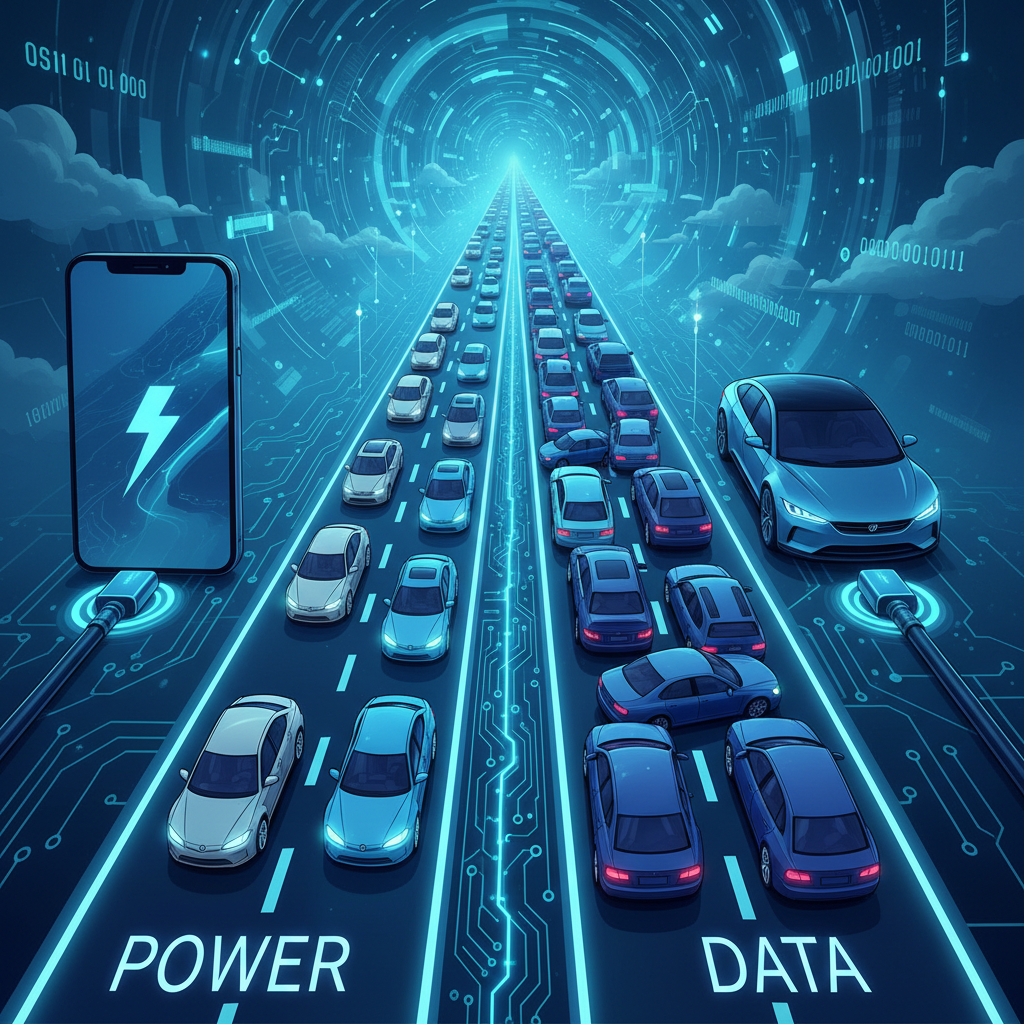
You might wonder how your phone can pull power from the car but fail to transfer data. Think of your charging cable like a two-lane highway. One lane is for electricity (power), and the other lane is for information (data). Sometimes, the “power lane” is wide open, but the “data lane” is blocked by a traffic jam.
In some cases, CarPlay issues are connected to deeper charging problems, like when a phone charges only when turned off
Several things can cause this blockage. It could be a simple setting on your phone that got toggled off by accident. Often, the culprit is the cable itself—cheap cables might charge your battery fine but lack the high-speed wiring needed for data transfer. Other times, it’s a software glitch in your car’s infotainment system or your iPhone’s iOS. When CarPlay works sometimes but only charges phone at other times, it usually points to a loose connection or a software handshake failure. We need to clear that data lane so your phone and car can talk again.
How to Fix Phone Charging But CarPlay Not Working
If you are stuck with CarPlay not working when phone is charging, don’t rush to the mechanic just yet. most fixes are simple enough to do in your driveway. Let’s walk through the most effective troubleshooting steps, starting with the easiest ones.
Check Your iPhone’s Settings
Before you blame the hardware, let’s look at the software. Your iPhone has specific privacy settings that might be blocking CarPlay.
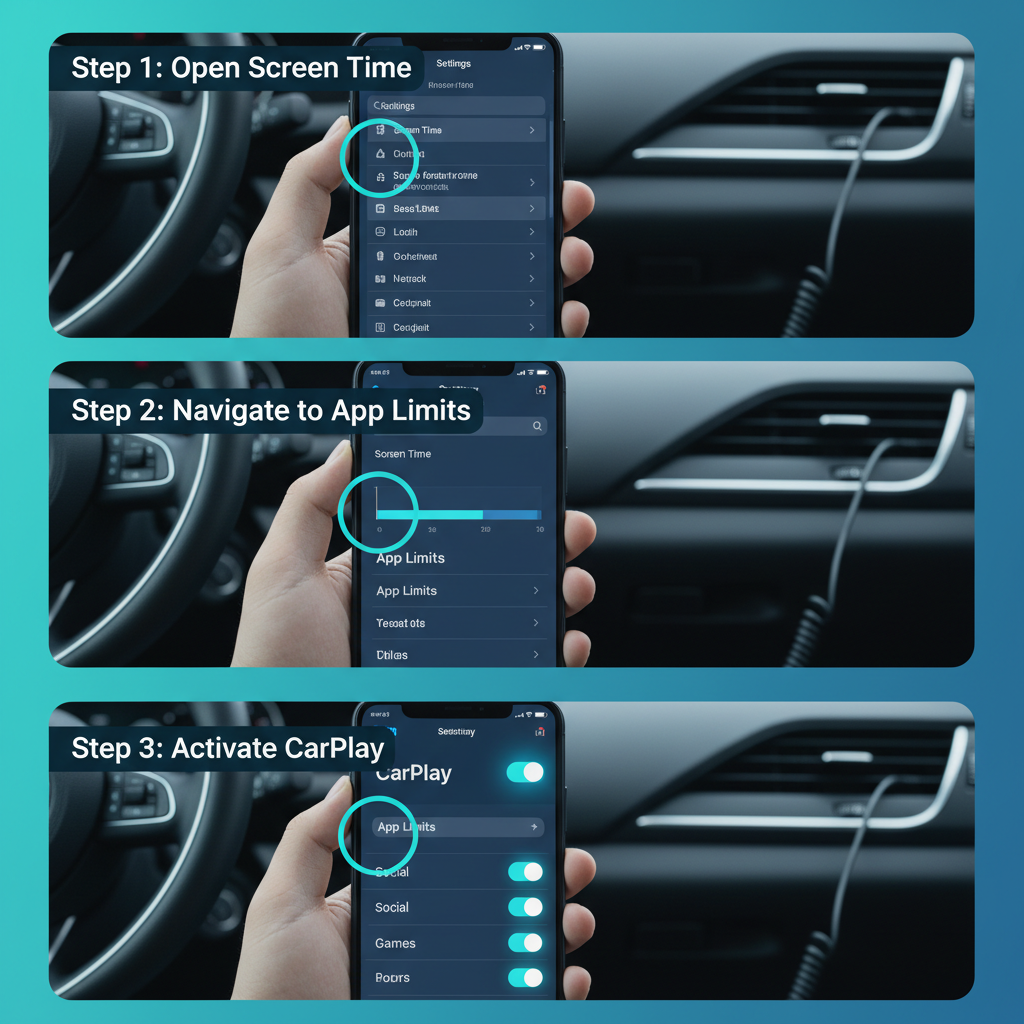
- Go to Settings > Screen Time.
- Tap on Content & Privacy Restrictions.
- If this is turned on, tap Allowed Apps.
- Make sure the switch next to CarPlay is green (on).
If CarPlay was turned off here, your phone would charge perfectly fine, but the car wouldn’t “see” the device for data purposes. It’s like knocking on a door but locking it from the inside.
Inspect Your USB Cable
This is the most common reason why a phone connects to charger but CarPlay won’t start. Not all cables are created equal. You need a cable that supports both charging and data transfer. Many cheap gas station cables are “charge-only.”
Check your cable for damage. Look for fraying at the ends or kinks in the wire. Even a small tear can disrupt the sensitive data connection required for CarPlay. Ideally, use the original white Apple Lightning or USB-C cable that came with your phone, or look for a high-quality third-party cable that is MFi (Made for iPhone) certified. Swapping out the cable is often the magic fix.
System instability can also affect computers, which is why problems like a Windows update stuck restarting are often caused by similar software conflicts.
Restart Your iPhone and Car’s Infotainment System
Technology gets tired. Sometimes, the software just needs a nap and a fresh start.
First, restart your iPhone. This clears out temporary glitches.
Next, restart your car. Turn the ignition completely off, open the driver’s door (to ensure the radio shuts down), wait about 60 seconds, and then turn the car back on. This forces the infotainment system to reboot and attempt a fresh connection. This simple “turn it off and on again” method solves a surprising number of iPhone CarPlay troubleshooting cases.
Update Your iPhone’s iOS
Apple frequently releases updates to fix bugs, including connectivity issues. Running outdated software is like trying to play a new video game on an old console—it just won’t work smoothly.
Go to Settings > General > Software Update. If an update is available, install it. Keeping your iOS current ensures your phone speaks the same language as your car’s system. For more detailed steps on keeping your device ready for connection, check out Apple’s official support guide on CarPlay connectivity.
Forget and Re-add Your Car in CarPlay Settings
Sometimes the digital “handshake” between your car and phone gets corrupted. You need to introduce them to each other all over again.
- Go to Settings > General > CarPlay.
- Tap your car’s name.
- Select Forget This Car.
Now, restart your car and plug your phone back in (or connect via Bluetooth if you use wireless CarPlay). Follow the prompts on your car screen and phone to set it up as a new connection. This clears out any old, buggy configuration files.
Check for Car Infotainment System Updates
Your phone isn’t the only thing with software. Your car’s radio runs an operating system too. If you updated your iPhone but your car is running software from five years ago, they might not get along.
Check your car manual to see how to update the system. Some modern cars update over Wi-Fi, while others require you to download a file to a USB drive or visit a dealership. Keeping the firmware updated is crucial for fixing bugs where CarPlay works sometimes but only charges phone.
Reset Network Settings on Your iPhone
If nothing else works, this is the “nuclear option” for connectivity issues. It won’t delete your photos or apps, but it will erase saved Wi-Fi passwords and Bluetooth connections.
- Go to Settings > General.
- Tap Transfer or Reset iPhone > Reset.
- Choose Reset Network Settings.
This wipes the slate clean for how your phone connects to other devices. Often, this clears deep-seated bugs that prevent CarPlay from launching. For additional deep-dive solutions, you can read more at iGeeksBlog’s guide to CarPlay fixes.
When to Seek Professional Help
If you have tried every cable, setting, and reset listed above and you are still facing the issue where CarPlay not working when phone is charging, it might be hardware failure.
The USB port in your car could be damaged or loose inside the dashboard. Alternatively, the charging port on your iPhone might have lint build-up or internal damage preventing data pins from connecting.
Try connecting your phone to a different car with CarPlay. If it works there, the issue is your car. If it fails there too, the issue is your phone. At this point, you might need to visit a dealership for your car or an Apple Store for your phone. For more specific scenarios and fixes, iPhone Life offers great insights into when hardware might be the culprit.
Frequently Asked Questions
Can a bad cable charge a phone but not work with CarPlay?
Absolutely. This is the most common cause. Charging uses specific pins inside the connector, while data transfer uses different ones. If the data wires inside the cable are broken—or if the cable was designed only for charging—power will flow, but the CarPlay signal won’t. Always use MFi-certified data cables.
How do I know if my car is compatible with CarPlay?
Not every car has CarPlay, especially older models. Check your car owner’s manual or look for the CarPlay icon on your infotainment menu. You can also plug your phone into the USB port; if compatible, a prompt usually appears on your phone asking if you want to allow CarPlay. If you see a “smartphone projection” or “app connect” option in your car settings, that’s a good sign.
Why does my CarPlay disconnect randomly?
Random disconnects are usually caused by a loose physical connection. Lint in your iPhone’s charging port can prevent the cable from seating fully. Use a toothpick (gently!) to clean it out. Also, a damaged cable might disconnect every time you hit a bump in the road.
Does wireless CarPlay have the same connection issues?
Wireless CarPlay avoids cable problems but introduces Wi-Fi and Bluetooth interference issues. If wireless CarPlay isn’t working, ensure both Bluetooth and Wi-Fi are enabled on your iPhone, and that you aren’t connected to other Wi-Fi networks (like a dashcam) that might interfere.
Could a recent iOS update cause CarPlay problems?
Yes, sometimes new updates introduce bugs. If CarPlay works sometimes but only charges phone immediately after an update, it’s likely a software bug. Apple usually patches these quickly, so keep checking for a newer update (like going from iOS 17.1 to 17.1.1).
How do I hard reset my car’s infotainment system?
Every car is different. A common trick for many vehicles is to hold down the power button (often the volume knob) for about 10–15 seconds until the screen goes black and the logo reappears. Check your specific car manual for the exact button combination.
Is there a specific USB port I should use for CarPlay?
Yes! Many cars have multiple USB ports, but only one or two are data-enabled for CarPlay. Look for a USB port outlined in white or one that has a phone icon or the CarPlay logo next to it. Ports labeled purely with a battery icon are usually for charging only.
If your phone shows unusual charging behavior outside of CarPlay, read our full guide on phone charges only when off – causes and fixes
Conclusion
When your phone is charging but CarPlay is not working, the problem is usually simple and fixable. In most cases, it comes down to a disabled setting, a low-quality or damaged cable, or a temporary software glitch on your iPhone or car’s infotainment system. Starting with basic checks—like enabling CarPlay, using a data-capable cable, and restarting both devices—can save you time and frustration.
If those quick fixes don’t work, updating your iPhone, re-adding the CarPlay connection, or resetting network settings often resolves deeper connection issues. Only after ruling out these steps should you consider possible hardware problems with the USB port or your phone.
By following the step-by-step solutions in this guide, you should be able to get CarPlay working again and enjoy hands-free navigation, calls, and music on the road.