
Laptop Freezing Randomly Windows 11? Here’s How to Fix It
Introduction
There is nothing more frustrating than being in the middle of an important project or an intense gaming session, only to have your screen suddenly lock up. If you are dealing with a Windows 11 freezing issue, you aren’t alone. It stops your productivity dead in its tracks and leaves you staring at a frozen image, unsure if you should wait it out or force a shutdown. The good news? This is usually solvable. Let’s dive into why this happens and, more importantly, how to fix laptop freezing Windows 11 so you can get back to work (or play) without the stress.
Table of Contents
What Does It Mean When Your Laptop Freezes?
Before we start turning things off and on again, let’s talk about what is actually happening under the hood. When we say a laptop “freezes,” we mean the operating system—in this case, Windows 11—stops responding to your input.
You might move your mouse, but the cursor stays stuck in one spot. You might type on your keyboard, but nothing appears on the screen. Sometimes, the audio might loop in a jarring “buzzing” sound, or the screen might just stay perfectly still like a photograph.
This is different from a crash, where the system might completely shut down or show you the dreaded Blue Screen of Death (BSOD). A freeze is like a traffic jam inside your computer’s brain. The processor is overwhelmed, confused, or waiting for data that isn’t coming, causing everything else to wait in line. It makes your sleek, expensive machine feel like a useless brick, affecting your ability to trust your device for important tasks.
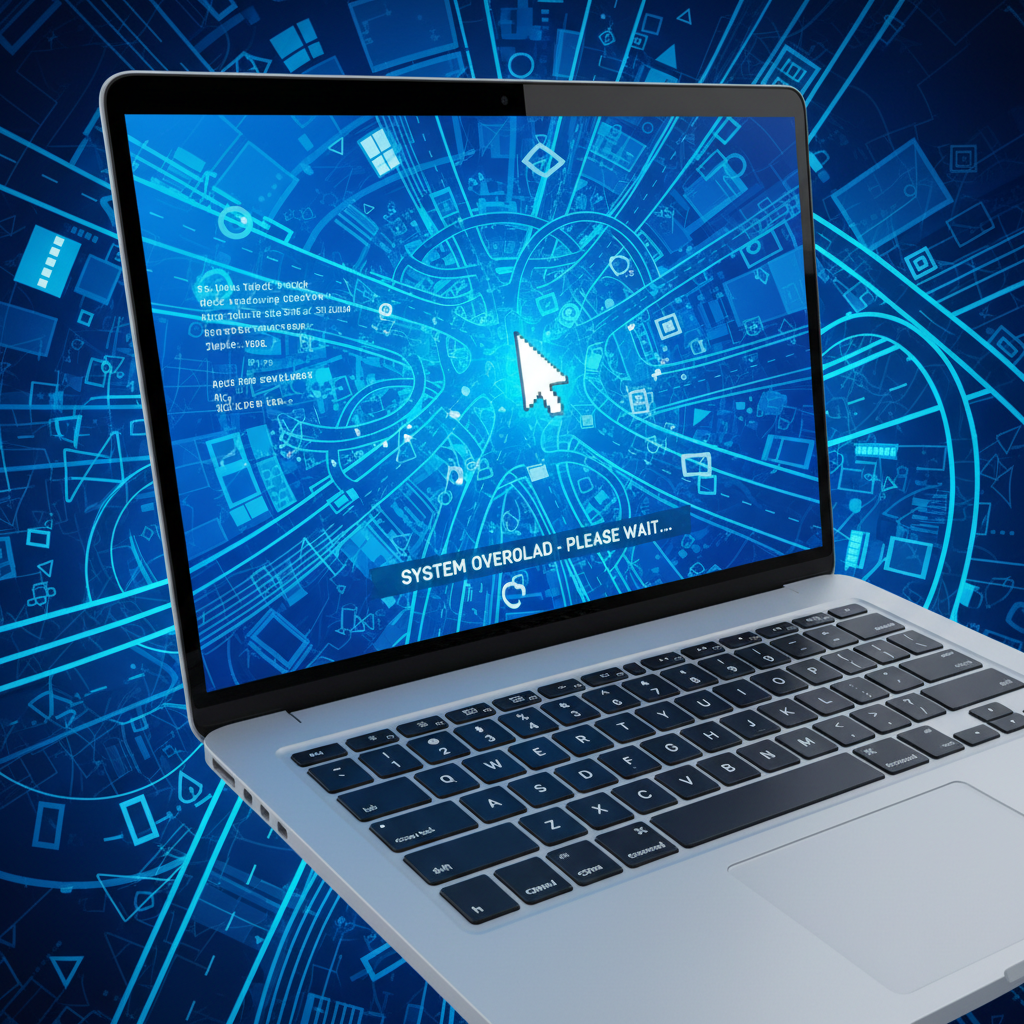
Why Does My Laptop freezing Randomly Windows 11?
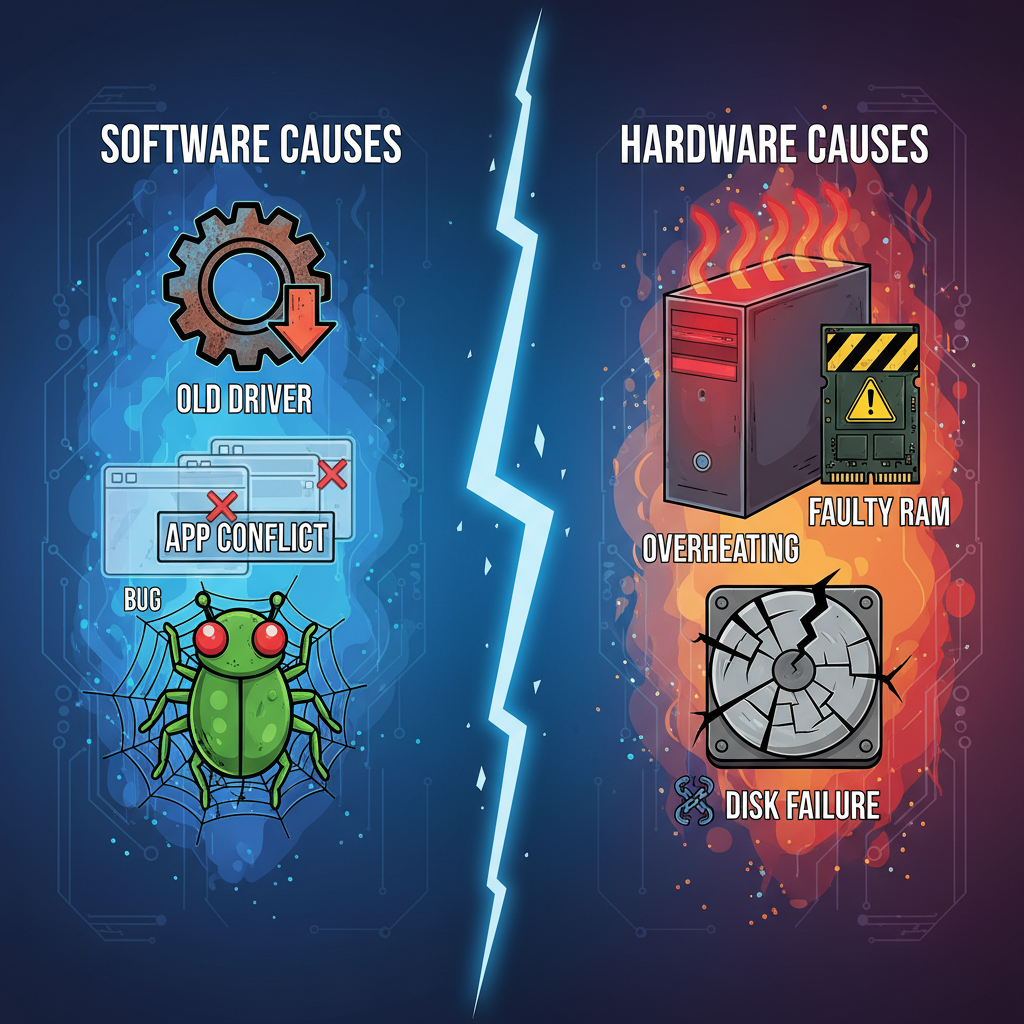
Understanding the why is half the battle. If you know what is causing the traffic jam, you can clear it up much faster. Generally, when Windows 11 keeps freezing and crashing, it boils down to two main culprits: software conflicts or hardware limitations.
Software-Related Causes
Software issues are the most common reason for random freezes. Think of software as the instructions your computer follows. If the instructions are messy, the computer gets confused.
- Windows 11 Bugs: Even though Windows 11 is a robust operating system, it isn’t perfect. New updates can sometimes introduce bugs that conflict with your specific setup.
- Outdated Drivers: Drivers are the translators between your hardware (like your video card) and your software (Windows). If the translator speaks an old language, miscommunication happens, leading to freezes.
- Conflicting Applications: Sometimes, two programs try to use the same resource at the same time. If you have multiple antivirus programs or heavy background apps running, they might fight for control, causing the system to lock up.
- Corrupted System Files: If essential Windows files get damaged (by a bad shutdown or malware), the system hits a dead end when it tries to read them.
Hardware-Related Causes
Sometimes, the problem isn’t the instructions; it’s the machine itself.
- Overheating: This is a huge factor. When components get too hot, they slow down to protect themselves. If they get critically hot, the system halts entirely. If your laptop freezes due to overheating Windows 11, it’s a safety mechanism kicking in.
- Insufficient RAM: Random Access Memory (RAM) is your laptop’s short-term memory. If you have 20 tabs open in Chrome, Spotify playing, and Photoshop running, you might run out of space. When RAM is full, the computer struggles to juggle tasks.
- Failing Hard Drive: If your storage drive is old or damaged, the computer might freeze while trying to read data from a bad sector.
How to Troubleshoot a Laptop Freezing Randomly Windows 11
Now for the part you came here for: the solutions. We will start with the easiest, least invasive fixes and work our way up to the more complex ones. Follow these steps in order to save yourself time.
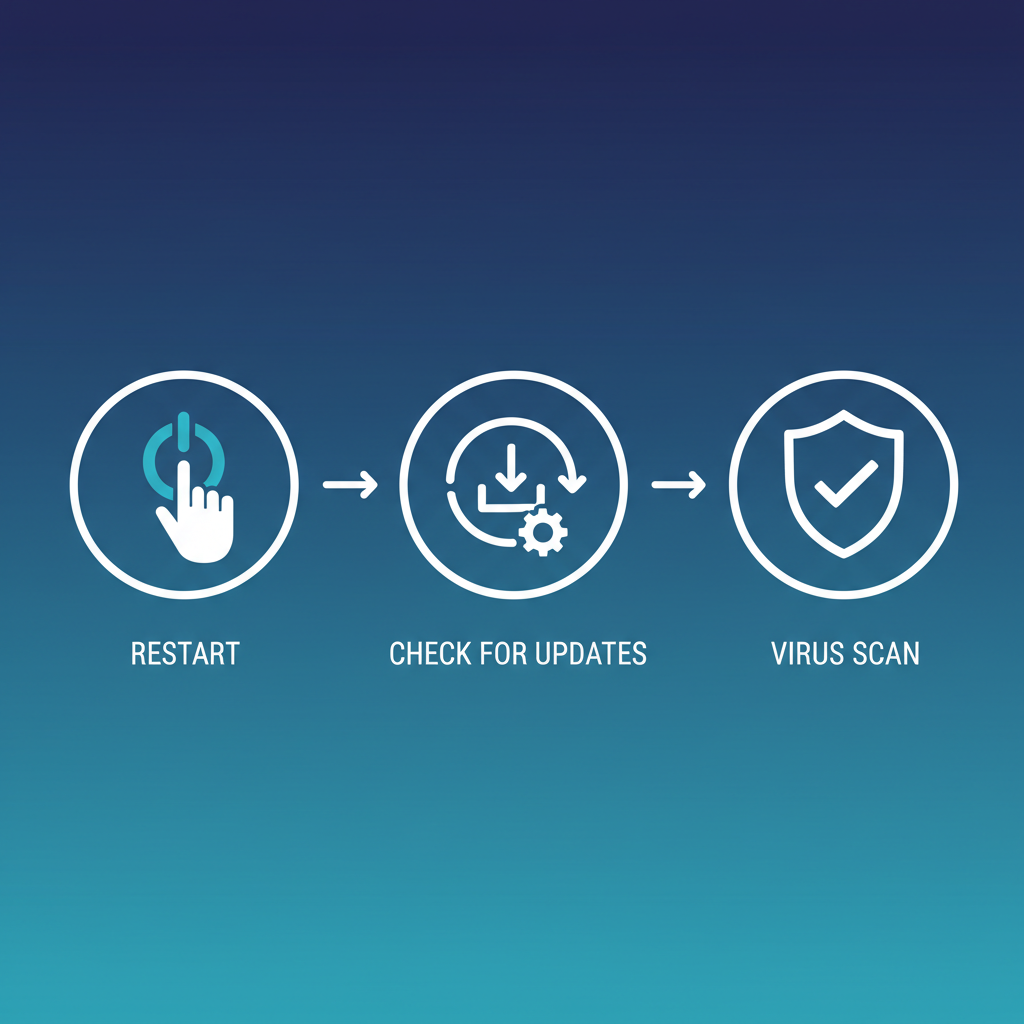
Restart Your Laptop
It sounds like a cliché, but restarting is often the magic bullet. When your computer runs for days or weeks without a break, temporary files pile up, and background processes can get stuck in a loop.
A restart wipes the slate clean. It dumps the temporary data from your RAM and forces all processes to start fresh. If your screen is currently frozen and you can’t click “Restart,” you may need to hold down the power button physically until the machine turns off. For more details on why this simple step is so effective, you can read our guide on Restarting Windows.
Check for Windows Updates
Microsoft is constantly releasing patches to fix known bugs. If your freezing is caused by a system glitch, chances are Microsoft has already sent out a fix for it.
- Press the Windows key + I to open Settings.
- Click on Windows Update in the left-hand menu.
- Click the Check for updates button.
If updates are available, download and install them. Be patient; this might take a while. If you encounter issues where the update hangs, check out this Windows Update Fix for help.
Update Drivers
As mentioned earlier, drivers are crucial translators. The graphics driver is the most common culprit for freezing issues because it handles everything you see on the screen.
- Right-click the Start button and select Device Manager.
- Look for Display adapters and expand the list.
- Right-click your graphics card (e.g., NVIDIA, AMD, or Intel).
- Select Update driver.
- Choose Search automatically for drivers.
Repeat this process for Network adapters and Firmware if the problem persists. Keeping these updated ensures your hardware speaks the same language as Windows 11.
Run a Virus Scan
Malware and viruses love to run in the background, mining cryptocurrency or stealing data. This sucks up your system resources, leaving nothing left for you, which causes freezing.
- Open Windows Security (search for it in the Start menu).
- Go to Virus & threat protection.
- Click Quick scan.
If you want to be thorough, choose Scan options and run a Full scan. It takes longer but checks every nook and cranny of your hard drive.
Check for Overheating
Heat is the enemy of electronics. If your laptop feels hot to the touch near the keyboard or the vents, thermal throttling might be the cause.
- Listen to your fans: Are they spinning loudly? Or are they silent when the laptop is hot (which could mean a broken fan)?
- Check airflow: Ensure you aren’t using your laptop on a soft surface like a bed or a pillow, which blocks vents. Use a hard, flat desk.
- Clean the vents: Use a can of compressed air to blow out dust from the side or bottom vents. Dust acts like a blanket, trapping heat inside.
Free Up Storage Space
Windows 11 needs a little breathing room to operate. It uses a portion of your hard drive as “virtual memory” when your RAM gets full. If your drive is packed to the brim with photos and downloads, Windows has nowhere to put that temporary data, leading to freezes.
- Go to Settings > System > Storage.
- Turn on Storage Sense. This automatically deletes temporary files and empties the recycle bin.
- You can also click Cleanup recommendations to see large, unused files you can safely delete.
Aim to keep at least 15-20% of your total storage drive free for optimal performance.
Perform a Clean Boot
If you suspect a specific program is causing the trouble, a clean boot helps you find it. This starts Windows with only the absolute minimum essential drivers and programs.
- Press Windows key + R, type msconfig, and hit Enter.
- Go to the Services tab.
- Crucial Step: Check the box that says Hide all Microsoft services. If you don’t do this, you might disable something important.
- Click Disable all.
- Go to the Startup tab and open Task Manager.
- Disable all startup items.
- Restart your computer.
If the freezing stops, you know one of the programs you disabled was the issue. You can turn them back on one by one to find the villain.
Run Windows Troubleshooter
Windows 11 has a built-in doctor. It’s not perfect, but it can find and fix common system maintenance issues automatically.
- Go to Settings > System > Troubleshoot.
- Click Other troubleshooters.
- Run the troubleshooters for System Maintenance (if available) or Power.
For deeper technical insights, you can also refer to Microsoft’s official guide on troubleshooting Windows freezes.
Advanced Fixes for Persistent Freezing Issues
If you’ve tried all the basics and your Windows 11 keeps freezing and crashing, we need to look at deeper issues. These fixes require a bit more technical comfort, so proceed with care.
Check and Replace Faulty Hardware
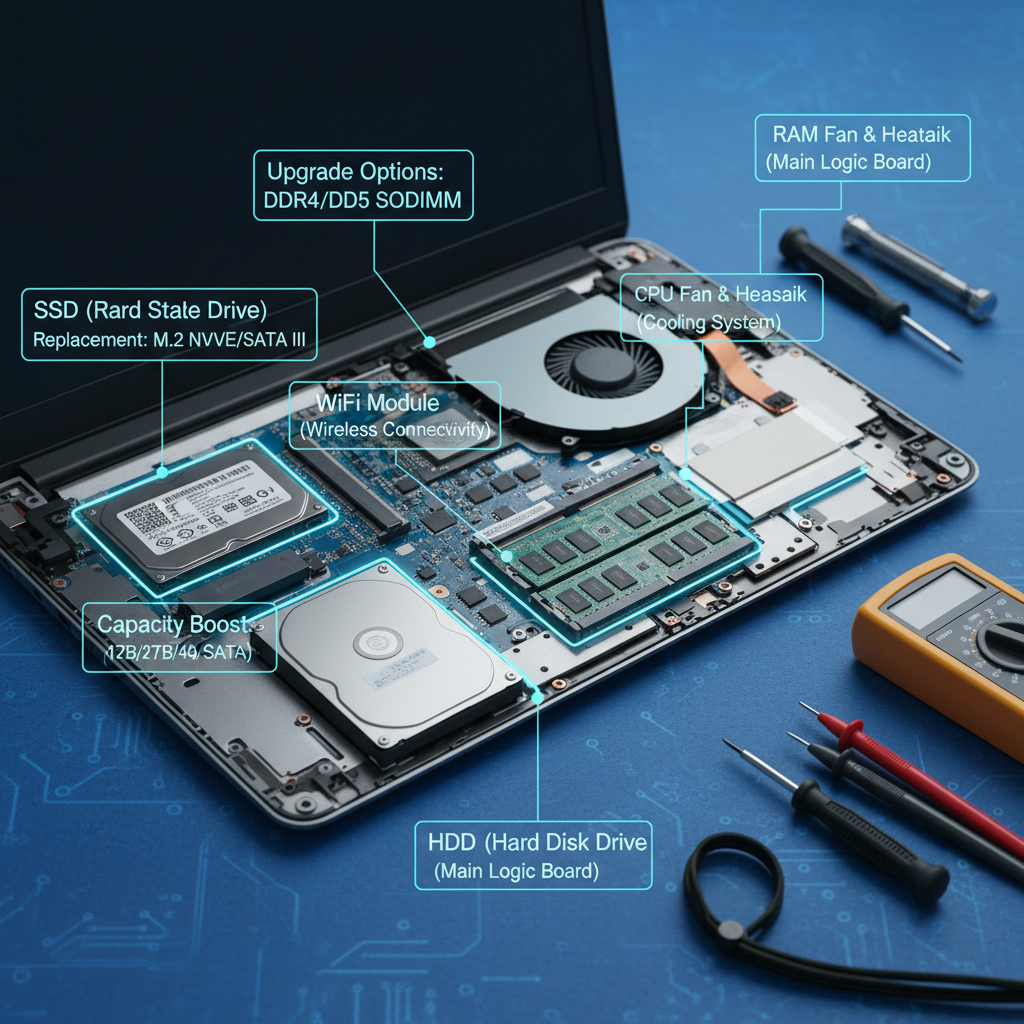
Sometimes, software fixes can’t solve hardware failures. A failing stick of RAM or a dying hard drive will cause freezes no matter how many times you update Windows.
Testing your RAM:
- Press Windows key + R.
- Type mdsched.exe and hit Enter.
- Choose Restart now and check for problems.
Your computer will reboot and run a diagnostic test on your memory. If it finds errors, you likely need to replace your RAM sticks.
Testing your Hard Drive:
You can use tools like CrystalDiskInfo (free software) to check the health of your drive. If it says “Caution” or “Bad,” backup your data immediately and look into replacing the drive.
Hardware issues can manifest in strange ways, much like Charging Issues can indicate deeper battery or port failures. If you aren’t comfortable opening your laptop, this is a good time to visit a repair shop.
Reinstall Windows 11
This is the “nuclear option.” If your software is deeply corrupted, wiping the slate clean and reinstalling Windows is often the only way to fix it.
Warning: This will delete your apps and settings. Make sure you back up all your important photos, documents, and files to an external hard drive or cloud storage like OneDrive or Google Drive before you start.
- Go to Settings > System > Recovery.
- Click Reset PC.
- Choose Keep my files (a softer reset) or Remove everything (a full clean slate).
A clean installation eliminates all software conflicts, viruses, and driver issues in one go.
Seek Professional Help
There is no shame in admitting defeat. If you’ve reset Windows, checked your temps, and updated everything, and the laptop still freezes, the issue might be on the motherboard or the power supply unit.
A professional technician has tools to test voltage stability and component integrity that the average user doesn’t have. If your laptop is still under warranty, contact the manufacturer immediately. Do not open the laptop yourself if you have a warranty, as this could void it. For additional community-driven support, threads like this one on Microsoft Answers can be helpful to see if others with your specific laptop model are facing similar issues.
Preventing Laptop Freezing Issues in the Future
Once you’ve fixed the problem, you want to make sure it doesn’t come back. Think of this as a healthy diet for your computer.
Regular Maintenance
Just like a car needs oil changes, your laptop needs regular maintenance.
- Keep Windows Updated: Don’t ignore those “Update Available” notifications.
- Dust it out: Every few months, check your vents for dust bunnies.
- Manage Network Connections: A stable connection keeps cloud-based apps from hanging. Sometimes poor connectivity acts like a system freeze. Check our guide on how to Fix Laptop Wi-Fi to ensure your connection remains stable.
Avoid Overloading Your Laptop
Be realistic about what your machine can do. If you have a budget laptop, trying to edit 4K video while streaming and gaming is a recipe for disaster.
- Close unused tabs: Web browsers are notorious memory hogs.
- Disable startup apps: Don’t let Spotify, Steam, and Discord all launch the second you turn on your computer unless you need them immediately.
- Monitor background activity: Occasionally check Task Manager (Ctrl + Shift + Esc) to see if any app is eating up 100% of your CPU or Memory.
Use Reliable Antivirus Software
Windows Defender (built into Windows 11) is actually quite good these days. However, if you visit risky websites or download a lot of files, consider a secondary layer of protection like Malwarebytes. The goal is to catch malicious scripts before they embed themselves in your system files and cause freezing.

Frequently Asked Questions
Why does my laptop freeze only when gaming?
This is usually a sign of overheating or a weak graphics card driver. Gaming pushes your hardware to the limit. Ensure your cooling fans are working, your vents are clear, and your GPU drivers are up to date.
Can overheating cause my laptop to freeze?
Absolutely. It is one of the most common causes. When the CPU gets too hot, it throttles performance to cool down. If it can’t cool down fast enough, it freezes or shuts down to prevent permanent physical damage.
How do I know if my laptop’s RAM is faulty?
Random freezes, especially accompanied by Blue Screen of Death (BSOD) errors, are a hallmark of bad RAM. Running the Windows Memory Diagnostic tool (search mdsched.exe) is the best way to confirm this.
Is it safe to force shutdown my laptop when it freezes?
It is generally safe to do occasionally, but not ideal. Forcing a shutdown (holding the power button) cuts power abruptly, which can corrupt files that were open. Only do this if the system is completely unresponsive.
How often should I update my drivers?
You don’t need to check daily. Windows Update handles most of them automatically. However, for graphics cards (NVIDIA/AMD), checking once a month is a good habit, especially if you play new games.
Can a virus cause my laptop to freeze?
Yes. Viruses, specifically “miners” that use your computer power to mine crypto, will max out your CPU usage, leaving zero resources for your actual tasks, resulting in a freeze.
What’s the difference between a clean boot and a safe mode?
Safe Mode loads Windows with a generic video driver and almost no features—it looks weird and low-resolution. A Clean Boot loads Windows normally but stops third-party apps from starting automatically. For more on Device Troubleshooting, understanding how different modes isolate problems is key.
Should I upgrade my hardware to fix freezing issues?
Only if you confirm hardware is the bottleneck. If you only have 4GB of RAM, upgrading to 8GB or 16GB will make a massive difference in preventing freezes during multitasking.
How do I back up my data before reinstalling Windows 11?
Use an external USB hard drive or a cloud service like Google Drive, OneDrive, or Dropbox. Drag and drop your “Documents,” “Pictures,” “Desktop,” and “Downloads” folders to the backup location.
What tools can I use to monitor my laptop’s performance?
Task Manager is the best built-in tool. For more detail, HWMonitor is a great free tool that shows you temperatures, fan speeds, and voltage usage in real-time.
Conclusion
Dealing with a laptop freezing randomly on Windows 11 can be frustrating, but the good news is that most freezing issues are fixable. Whether the cause is outdated drivers, overheating, insufficient RAM, or conflicting software, following the step-by-step fixes outlined in this guide can help you restore your laptop’s performance. From simple solutions like restarting your PC and updating Windows, to advanced methods such as checking hardware or reinstalling the operating system, there’s a solution for every level of technical comfort.
Remember, prevention is just as important as troubleshooting. Keeping your system updated, performing regular maintenance, monitoring temperatures, and avoiding overloading your laptop can significantly reduce the chances of future freezes. For persistent issues that don’t resolve with these steps, seeking professional help or consulting official Microsoft support resources is the safest path.
By applying these strategies, you can ensure your Windows 11 laptop runs smoothly, helping you stay productive, enjoy gaming, and complete your tasks without interruptions. Don’t let random freezes slow you down—take action today and keep your laptop performing at its best.